This feature will bring your chat to life and make your participants happy!
Our expert Sergey Fedorichev told us how to teach a bot to put reactions to messages in a few minutes.
STEP ONE - connect a resource (group) to our bot
You can read how to do this here .
STEP TWO - go to its settings

Instead of the K-command there will be the name of your resource.
STEP THREE - open the "Triggers" tab and create a new
STEP FOUR - setting up a trigger
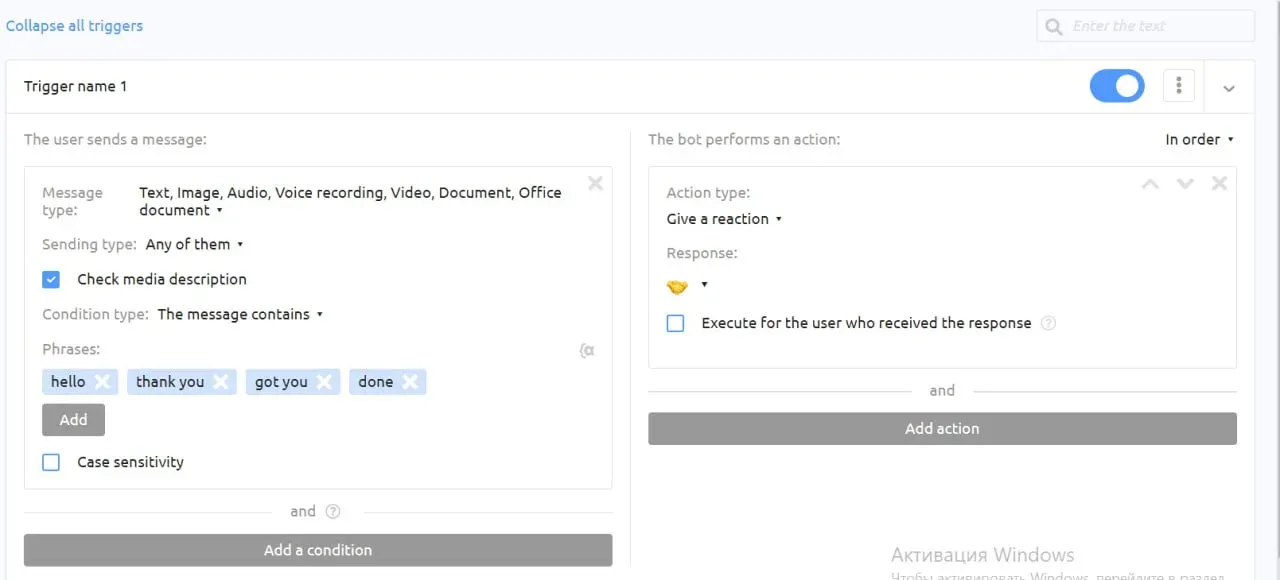
Let's expand the trigger and set the following settings
On the left side:
Message type: Text, Image, Audio, Voice recording, Video, Document, Office document
Shipping type: Any of them
Condition type: Message contains (this means that if the user writes text and the message contains the phrases that we have configured below, the trigger will fire)
Phrases: Here you can enter any value that you want the trigger to fire.
On the right side:
Action type: Give a reaction
Response: choose any one you like
STEP FIVE - testing the result
Let's go to our connected resource and start writing the “Phrases” that we set.

As you can see, the bot puts the reaction we chose, we succeeded!
Examples where you can still use the bot to set reactions:
1. After responding to input forms, through the “Action” tab
2. Ability to put a reaction to an unknown command in the bot
3. When starting a dialogue, ask the user a question and after his answer give a reaction to it, for example 👍
Do you want to ask a question to an expert? Write it in the comments under the last post in our channel , the most interesting ones will be included in the analysis.