Our expert Vladislav Serebertsev explained how to set up automatic admission to a resource (group or channel) via a captcha in the bot.
Step 1 — Create a category

1. Go to the "Moderation" section of the bot in your puzzlebot account.
2. Create a category, for example: "Authorized".
Step 2 — Connect a group or channel
1. Connect your private group to puzzlebot. We explained how to do it here: https://help.puzzlebot.top/article?r=4&a=9

2. In the Telegram channel or chat, create a new invite link with the "Request admin approval" toggle on.
Step 3 — Set up the bot logic

1. Go to the "Constructor" section
2. Create 4 commands: 3 inline commands and 1 regular command.
3. The "Inline 1" command contains a block with a video and a description. The user moves on to the next block with a button.
4. The "Inline 2" command is set up the same way, but with different content.
5. The "Regular 1" command contains an "Input form" block with the "Test" input type. If the answer is wrong, we ask the user to try again. The answer options are buttons with the "Popup" action, and only one of them is correct; choosing it takes the user to the next block. In the input form's advanced settings, check "Random order of options".
6. The "Inline 3" command contains a block with a video and a description; put the invite link you created in STEP 2 in its button. In the command's actions, assign the "Authorized" category you created in STEP 1.
Step 4 — Set up join requests to the resource
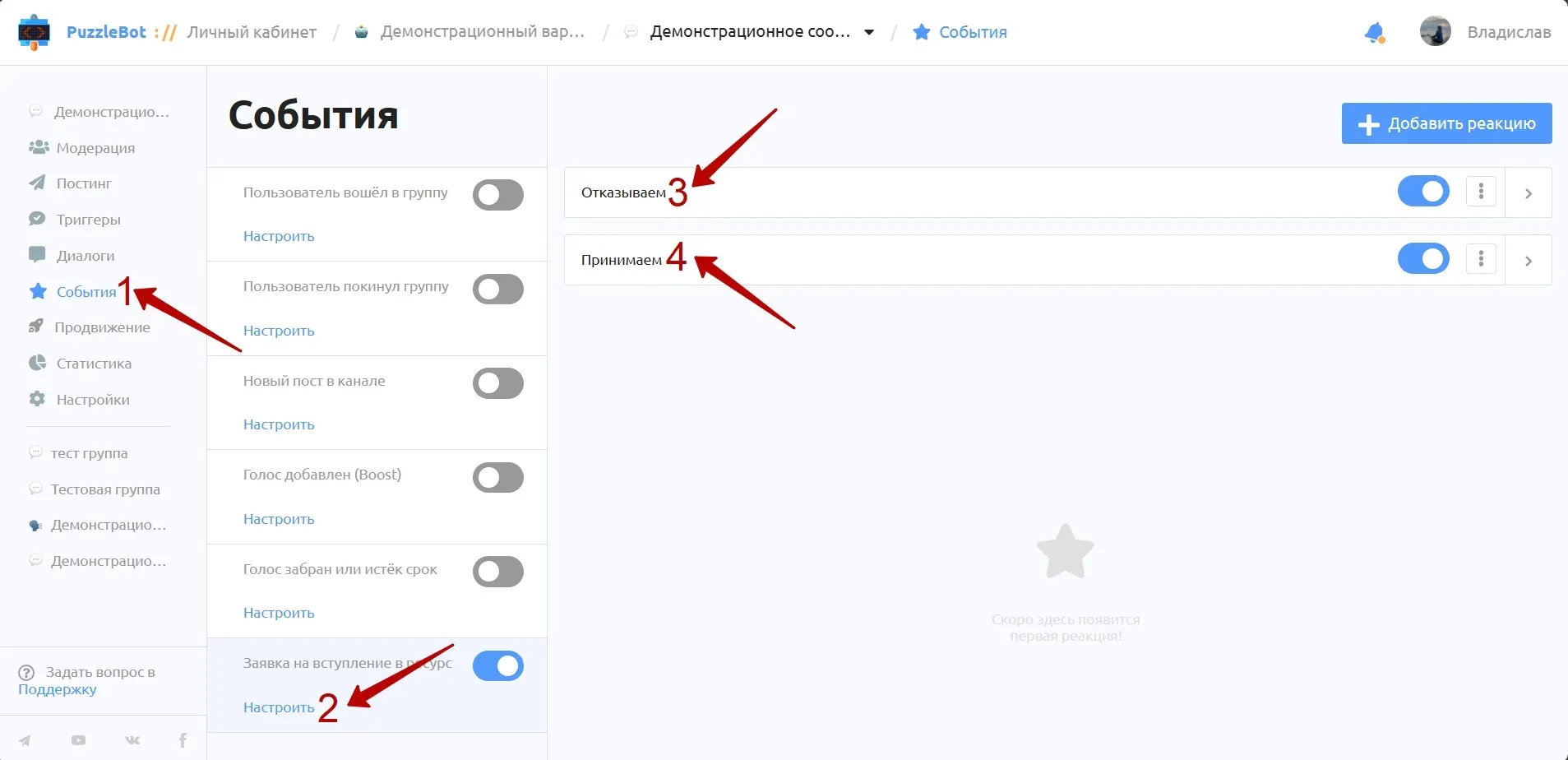
1. Go to the "Events" section.
2. Click Configure next to "Join request to a resource".
3. Add two reactions. The first one declines users who don't have the required category; name it "Decline". The second one approves users who have the required category; name it "Approve".
Step 5 — Set up the "Decline" reaction

1. For the action type, select "Decline join request" and "Command and conditions", then enter the command /start.
2. Go to the advanced settings, the "For categories" item. We need to change the list: select "All", then find the required category, switch its toggle to the left and click Save.
3. Save the changes.
Step 6 — Set up the "Approve" reaction
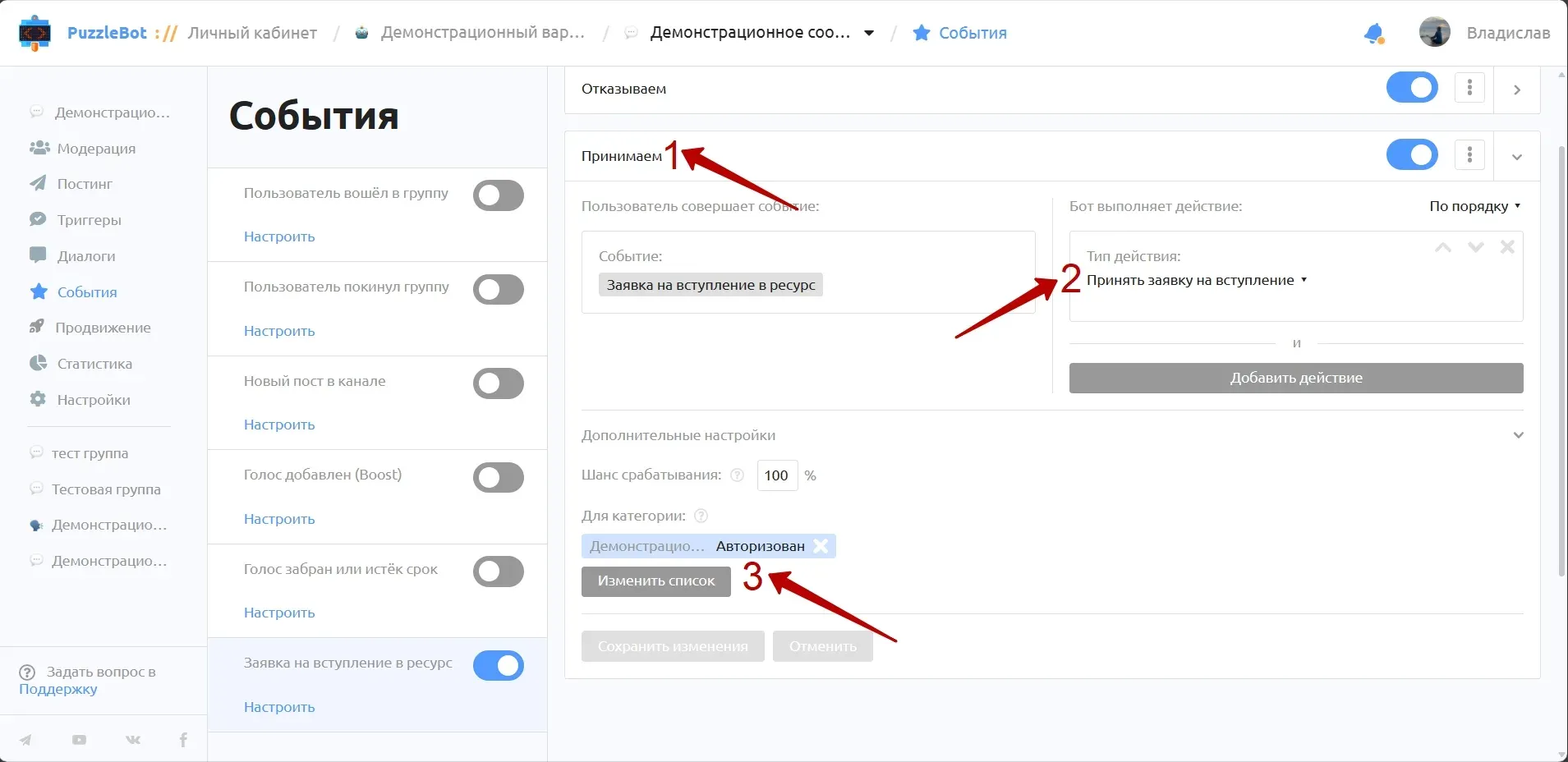
1. For the action type, select "Approve join request".
2. Go to the advanced settings, the "For categories" item. We need to change the list: select "Any", then find the required category, check it and click Save.
3. Save the changes.
We've learned how to set up join requests to a group or channel with a captcha check. It filters your community down to real users and makes it more valuable.
Want to ask our expert a question? Leave it in the comments under the latest post in our channel, and we'll break down the most interesting ones.