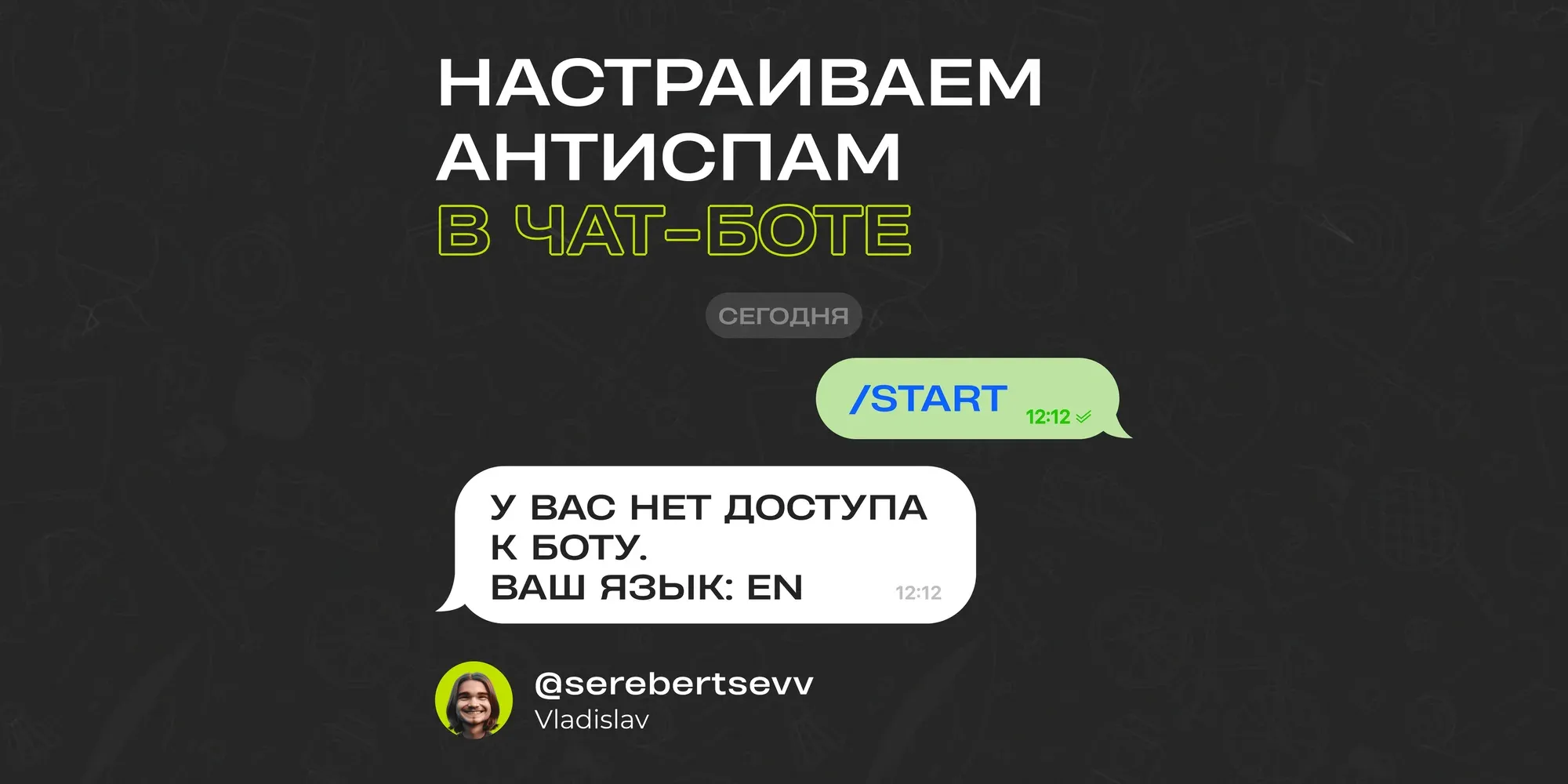
In this guide, Svetlana Gizatulina explains how to create a chatbot that handles lead magnet requests on its own and gets the job done 24/7.
Step 1 — Connect your bot to puzzlebot
You can find out how in the Knowledge Base: https://help.puzzlebot.top/article?r=3&a=18
Step 2 — Set up the bot logic to send a lead magnet after a subscription check
Setup overview
1. Go back to puzzlebot and the bot service.
2. Click +Add resource and add your channel as a resource.
3. Go to the Constructor section and delete the preset commands.
4. Create a regular command and messages with instructions.
5. Add a button and specify the name of the command that will contain the lead magnet. Save the settings.
6. Open the gift command you created and add the gift. To upload a file, use the Document block type.
7. Create a new command group.
8. Select the gift command and move it to the new group.
9. Go to the new group and check your channel in the Resource subscription check field. Save the setting and upload the changes to the bot.
10. Go back to the main group and open the /start command. In the Actions section, add the Send command or condition action and specify the name of the command with the instructions. Save the changes and upload them to the bot.
11. Open the bot's main screen and go to the Events section.
12. Open Chain access denied (resource subscription check) and add the text the user will receive if they aren't subscribed to your channel. Save the changes.
Test the bot from any account to make sure the lead magnet is sent only to subscribed users. The setup is complete.
Want to ask an expert a question? Leave it in the comments under the latest post in our channel — the most interesting ones will get a detailed breakdown.