The bot checks every subscriber of the channel and only counts those who have a category assigned in the bot.
To implement it, you will need to create:
1. one category.
2. Two global variables - to count daily and weekly subscriptions.
3. Four regular commands.
Let's start with creating the categories and variables, and then move on to the command that will invite to the channel.
The logic is as follows - every time a user enters the command, the bot assigns a category and disables it after 5 minutes for more accurate counting of subscription statistics.

Inside the command we write the text and create a button to go to the channel.
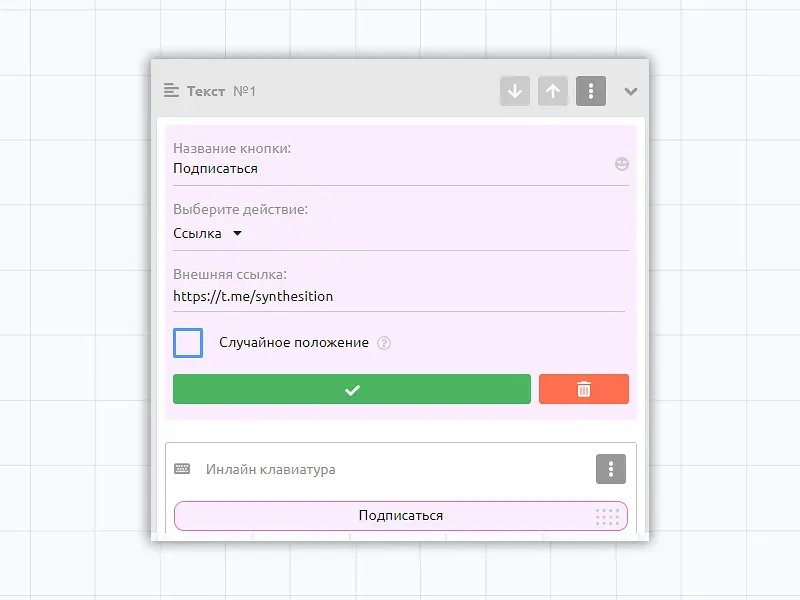
Inside the button, select the "Link" action and fill in the data: title and link, and confirm the action by clicking on the check mark.
Now let's customize the actions within the team.
1. Assign a category to the user to whom we sent an invitation to the channel, so that the bot can see - our subscriber went to the channel through our bot.
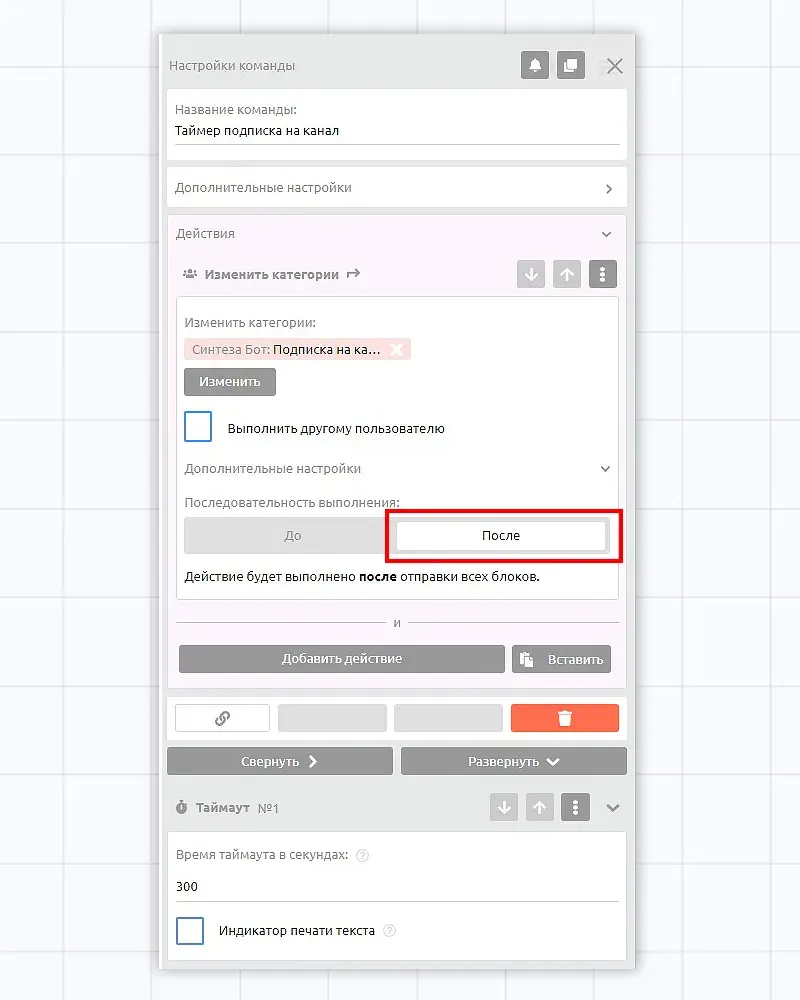
2. Set up deleting the category in case the user subscribes to the channel later for another reason. To do this, let's create another command "Channel Subscription Timer", and set the transition to it.

3. disable the category in the actions inside the created command "Channel subscription timer". Disabling should happen after the timeout time has expired, so let's leave the "After" slider unchanged.
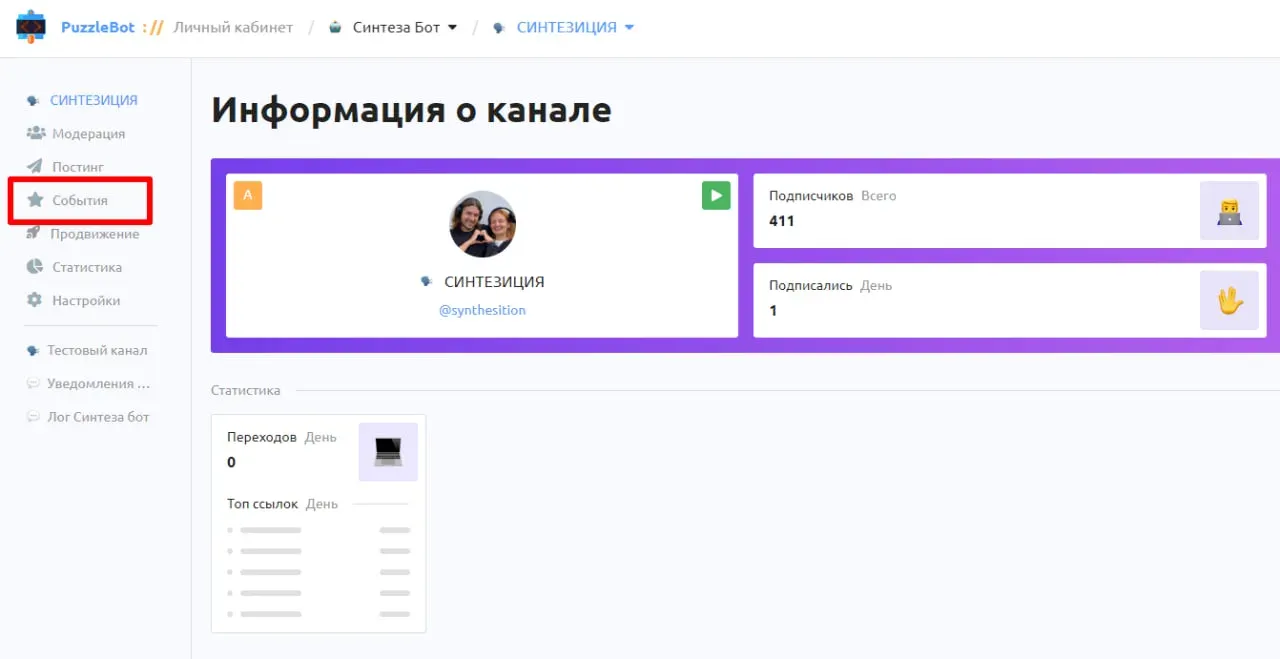
Next, let's go to the settings of the connected channel in the "Events" section.
Let's find the "User subscribed to channel" item and configure sending a command to the bot for the assigned category.
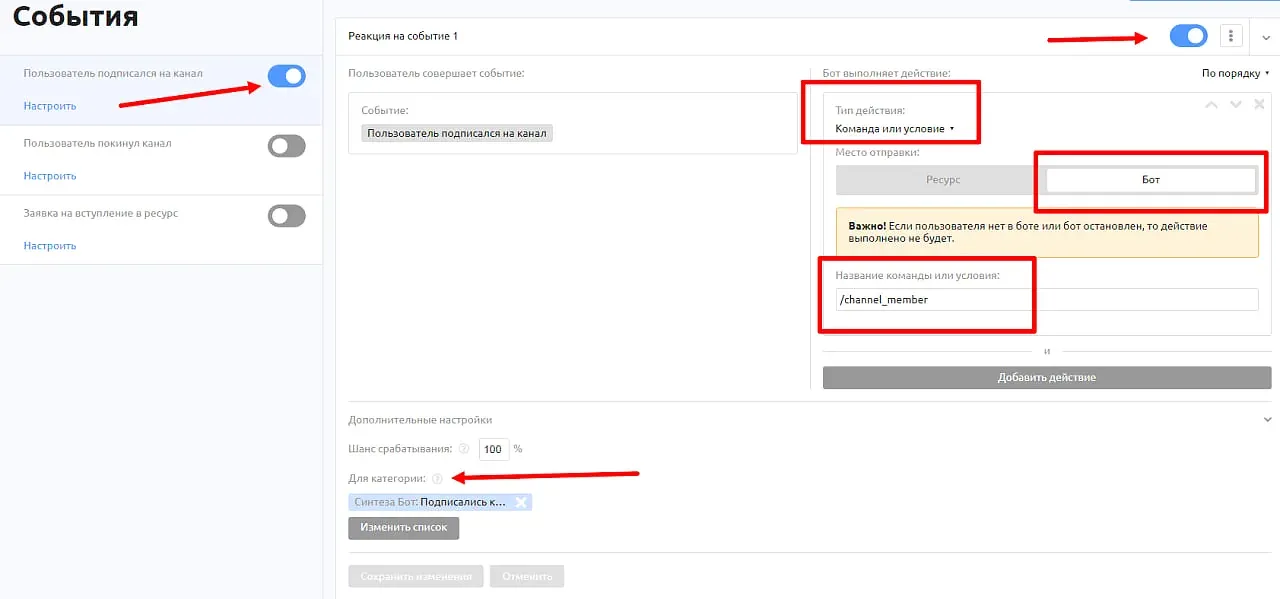
In the command where the transition takes place, we write the text of the message that will be sent to the user.

To keep track of each subscriber, let's set up work with global variables. Each time the command is executed, their values will be incremented by 1.

For proper display of information in the counters, it is important to reset them via script - once a day for the {{channel_day}} variable and once a week for the {{channel_week}} variable.
We will create a separate instruction on how to customize reports for the bot.
Additionally, you can customize the notification of each new subscriber. To do this, create the "Notify CHANNEL" command, check the "Change sending locations" checkbox and specify the resource we need.

Inside the command we will write the text and specify the necessary variables.
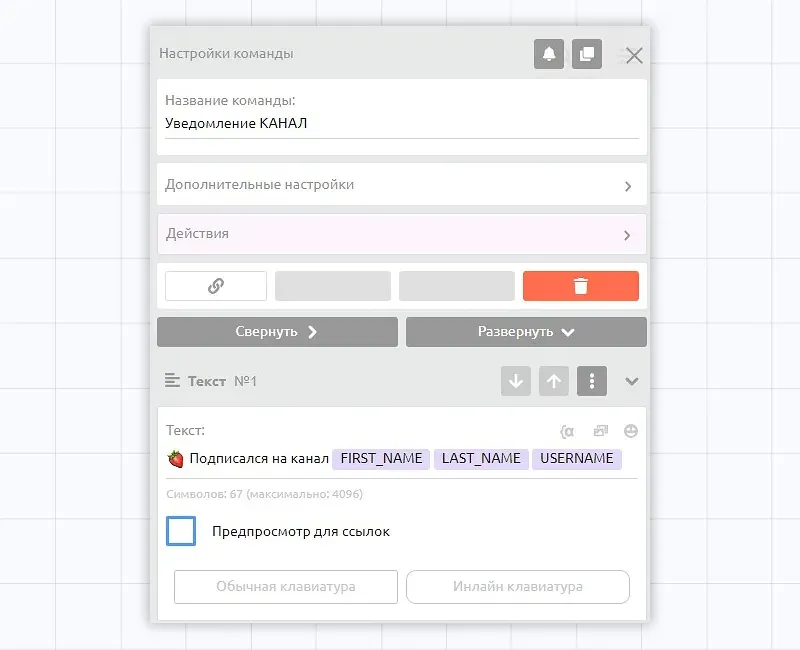
So with a few simple steps, you can easily automate the process and track the number of subscribers from bot to channel.