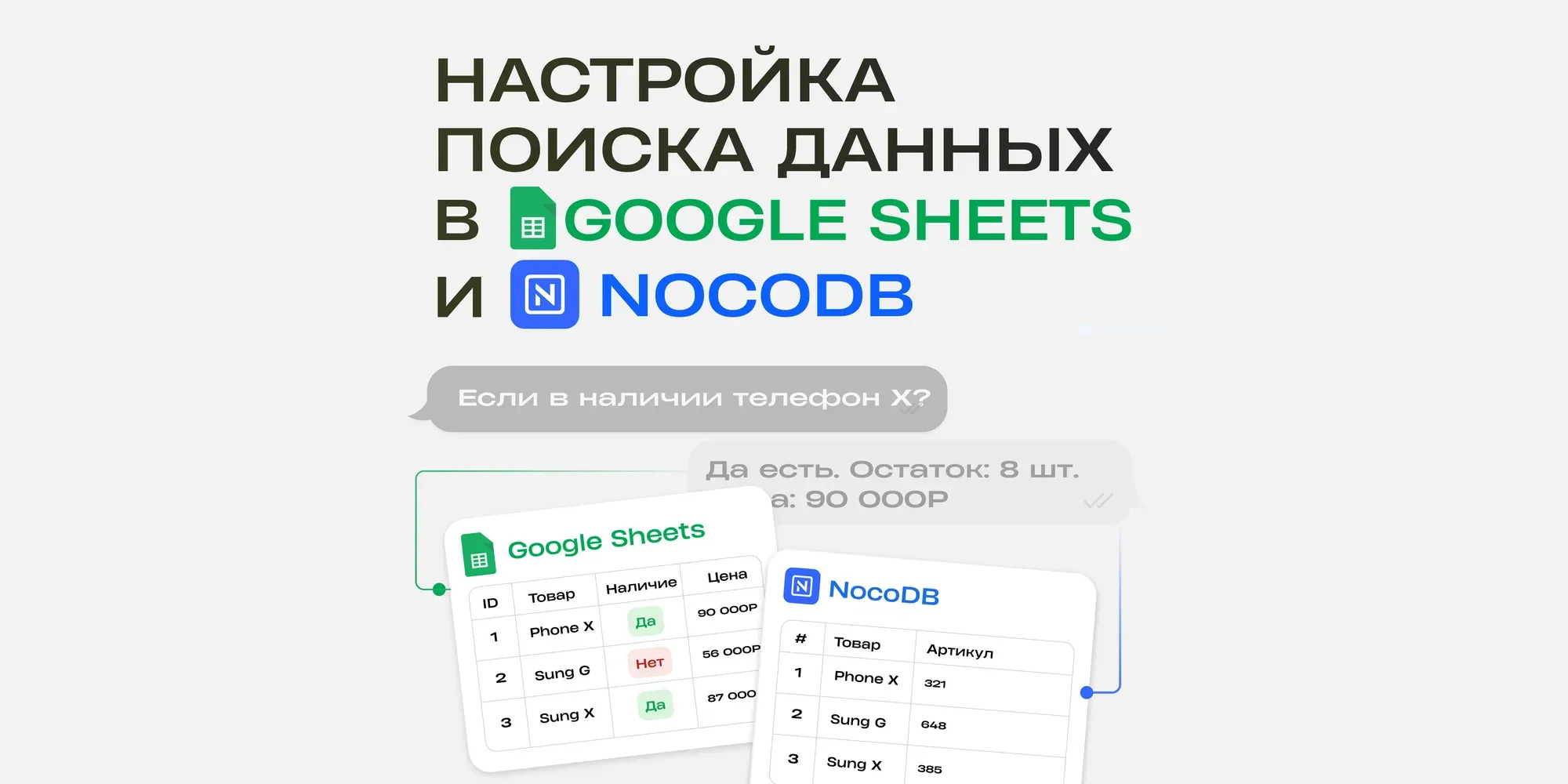
In this guide, we show how to set up a mechanic that searches a table for a value the user types in (for example, a name, email or ID) and displays the result.
You can use this mechanic to:
search for products by model name (checking availability and displaying product details)
check orders (for example, by order number or email)
work with a knowledge base
view statuses (order placed, handed over for delivery, delivered and so on)
Written by Svetlana Gizatulina, developer of Telegram bots and mini apps. Author of the @DevGrowBot channel
How it will work
The user enters a value (for example, a model name, email or ID).
The entered value is used to search the corresponding column of the table.
if a match is found, the bot displays the data
if no match is found, the bot says so
Let's walk through the setup using a product table with the following fields:
Model - model name
Description - description
Price - price
Availability - availability
Quantity - quantity
For example, we ask the user for a model name, and the search runs on the Model column.
Prepare the data source
Let's look at how to set up data search using Google Sheets and NocoDB as examples.
The logic is the same in both cases: the bot searches for the entered value and displays the result.
Integrating Google Sheets with puzzlebot
In puzzlebot, go to Settings → Integrations → Google Sheets and click SIGN IN WITH GOOGLE. A page opens where you need to choose an account.
To complete the integration, accept the terms and grant the requested permissions.
Once connected, you'll see the added Google account in the list of integrations.
Integrating NocoDB with puzzlebot
In puzzlebot, go to Settings → Integrations → NocoDB and click Open. The sign-up page opens.
Sign up and go to Account settings → Tokens, then create an API token and copy it.
Go back to puzzlebot, paste the token in the integration section, save your changes and check the quick access box Add NocoDB tab to menu. Quick access to your tables will then appear in the Constructor menu.
Prepare the table
Once the integration is connected, prepare a table with your data.

Create a Google spreadsheet.
Create and set up a NocoDB table with the same fields as in the example above, and fill it with data.
Set up the logic
In puzzlebot, go to Constructor and set everything up step by step.
1. The "User request" command
Create a regular command. This will be the entry point where the user enters a value. Add an Input form block and configure it:
Text: Which product would you like to order?
Input type: Send message
Input mask: Text
Optionally, set up a reaction to the user's answer:
Reaction: Looking up the information…
Auto-delete message: after 2 seconds
Save the command.
2. The "Google Sheets output" command
Create a regular command. It will display the data that matches the user's request. Add a Slider block and configure it:
Type: Google Sheets
Paste the link to the table
Select the sheet you need (if there are several)
Search settings:
Search column: Model
Value format: text
Condition type: Message contains. This lets the bot find partial matches too (for example, if the user entered only part of the product name).
Phrases: Model (the variable that stores the user's request)
Additional settings:
Sort by column: leave it as Not set or choose the column you need
Sort results: Ascending or Descending, whichever you need
Search option: All displays all matches, First found displays only one value, Set quantity displays the specified number of records (you can use it to show top sellers)
Substitution:
Choose the block type the response will be built in (the example uses Text).
Fill in the response template using variables from the table: Model - [A], description - [B], price - [C], availability - [D], quantity - [E]
Save the command.
3. The "No data" command
Create a regular command. The bot will send it if it doesn't find any matches in the table.
Add a Text block and enter a message, for example: "Sorry, we don't have that model".
You can also suggest that the user browse the available products. To do this, add a Slider block.
Set up the block the same way as in step 2 for the "Google Sheets output" command, but instead of searching by the entered value, filter by availability:
Column: Availability
Condition: Exact match
Value: in stock
This way, even when there's no match, the user can browse the products that are in stock.
4. The "Availability check" condition command
Create a new Condition command. It will check whether the data exists in the table:
If matches are found, the "Google Sheets output" command is sent
If there are no matches, the "No data" command is sent
Rule settings:
Check type: Google Spreadsheets section -> Check row
Paste the link to the table
Select the sheet you need
Search settings:
Search column: Model
Value format: text
Condition type: Message contains
Phrases: Model (the variable that stores the user's request)
Action type: Send command or condition -> "Google Sheets output"
In the exclusion rule, set it to send the "No data" command
Save the command.
Always use a condition block before displaying the data. If you send the user straight to the Google Sheets block without a check, the bot won't respond when there are no matches. The check lets you handle both scenarios correctly: a successful search and no results.
The setup for NocoDB works the same way: only the data source changes, and the logic stays the same.