Running on two platforms changes how projects work. For example, when a user buys a course in a Telegram bot, their MAX account isn't linked automatically, and they don't get access to the same materials
Written by Elena Nikulina, developer of Telegram bots and mini apps. Author of the @elen_nikulina_channel channel
I'll build this feature with puzzlebot.
Step 1 — Prepare the database
Let's prepare a table with user data. Be sure to add columns named User tg id and User max id

Then add columns with the key data you need to sync between the platforms: the user's plan, their progress and other parameters
Step 2 — Check the platform


Let's set up a platform check so the data goes into the table correctly.
Add:
Condition: variable check, variable {{PLATFORM}}
Condition type: Exact match
Phrase: tg
Action: send the Payment_plan_tg command
In the same way, add another check of the {{PLATFORM}} variable, this time with Phrase: max and Action: send the Payment_plan_max command
Step 3 — Add data to the database

In the purchase payment command for Telegram, add the action Create a row in Google Sheets. Specify the variables you need: User tg id, name, username, plan
In the same way, add the action to the purchase command for MAX: Create a row in Google Sheets. Specify the variables you need: User max id, name, username, plan
Step 4 — Create links for the integration

1. Create a new command named Integration_max
2. Add a link like this to the command: https://max.ru/{{BOT_USERNAME_TEXT}}?start= {{USER_ID_TEXT}}
You can copy the link from the Entry section, but change the text after ?start=
1. In the same way, create an Integration_telegram command
2. Add a link like this to the command: https://t.me/{{BOT_USERNAME_TEXT}}?start= {{USER_ID_TEXT}}
Step 5 — Use the {{START_PAYLOAD}} variable
When the user follows the link, {{USER_ID_TEXT}} is written to the special {{START_PAYLOAD}} variable, and the user is taken to the /start command.
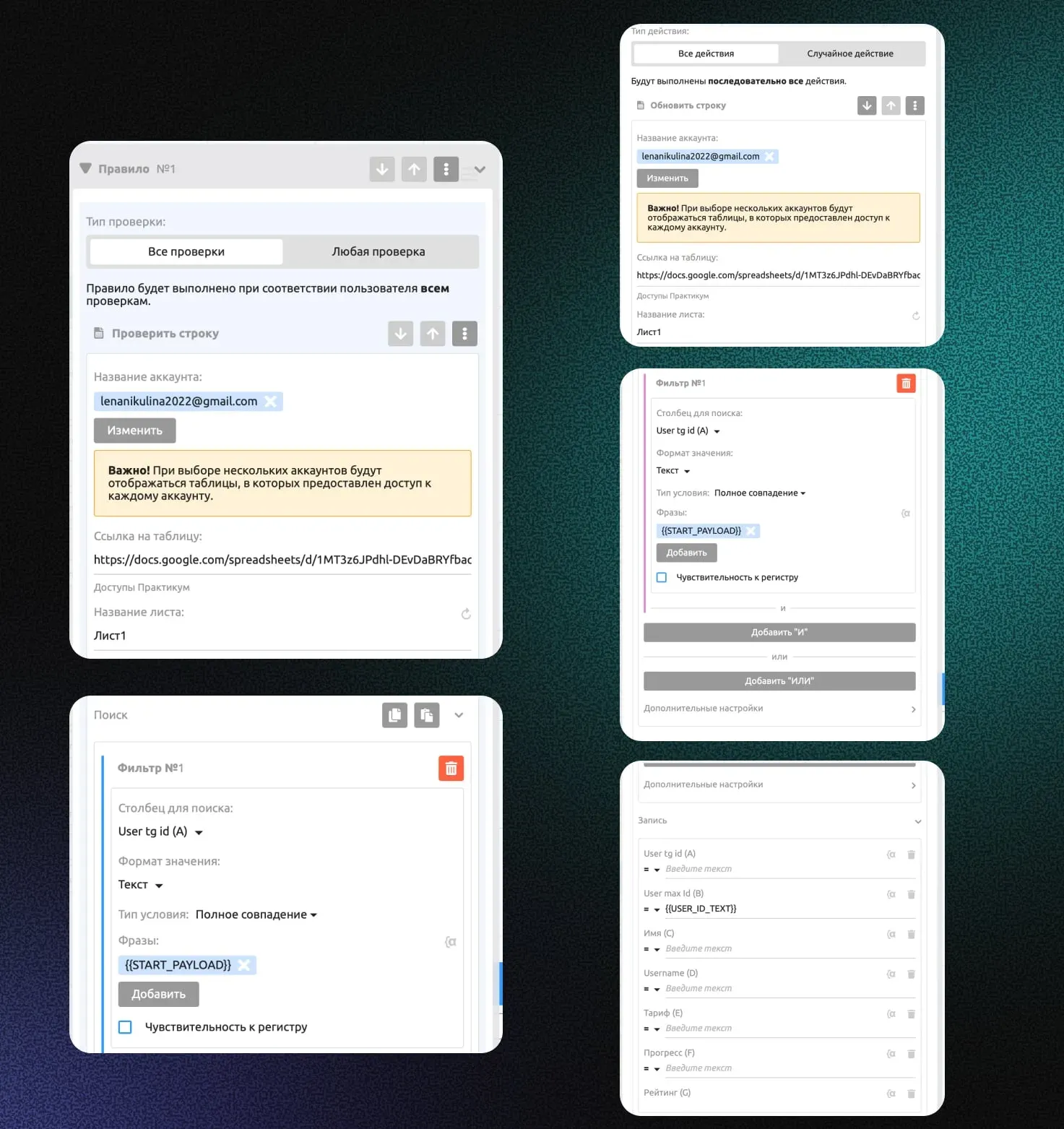
So we need to add a check to the /start command to find out whether the user is switching from one platform to another or simply starting the bot.
Add a condition for MAX: Check_max
Check the row in our database table of course buyers: if the row contains the {{START_PAYLOAD}} variable, the user is switching between platforms
If not, we simply send them to the welcome command.
In the action for a successful check, we update the row and write the user's {{USER_ID_TEXT}} to the User max id column
Step 6 — Transfer categories and access

Next, I add one more condition to give the user access to the course on MAX according to their plan.
In the check, I specify Row in Google Sheets:
in the User max id column, I search for {{USER_ID_TEXT}}
in the Plan column, I search for the name of one of the plans, for example, Basic (my course has 3 plans)
I add the action Change categories: Payment_Basic
In the same way, I add checks for the other plans and assign the matching categories
I also clear the {{START_PAYLOAD}} variable
You can set up the same check for Telegram using a check of the {{PLATFORM}} variable