Connect ChatGPT in your bot to create text or process an image. Use chat to communicate with your subscribers in your customized role as a motivational psychologist, financial analyst, or service advisor.
In this tutorial, we'll cover:
How to connect ChatGPT to the bot
How to set up limits in the bot
1. How to connect ChatGPT to a bot
To connect the integration, we will use the ChatGpt_PuzzleBot bot. Launch it using the link:
https://t.me/ChatGPT_PuzzleBot
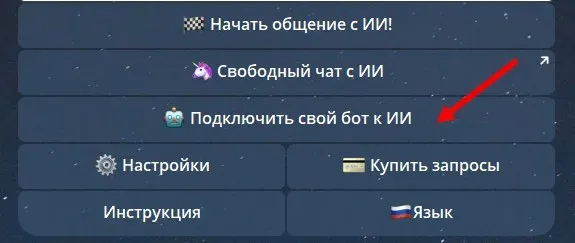
If you don't have your own bot yet, register it in the PuzzleBot builder by following the short video on how to do it. If you already have a bot, proceed to the next step.
Generate an API token for incoming requests:
1. Go to your personal account and select the bot you want to connect ChatGPT to.
2. Open the "Settings" section of the bot.
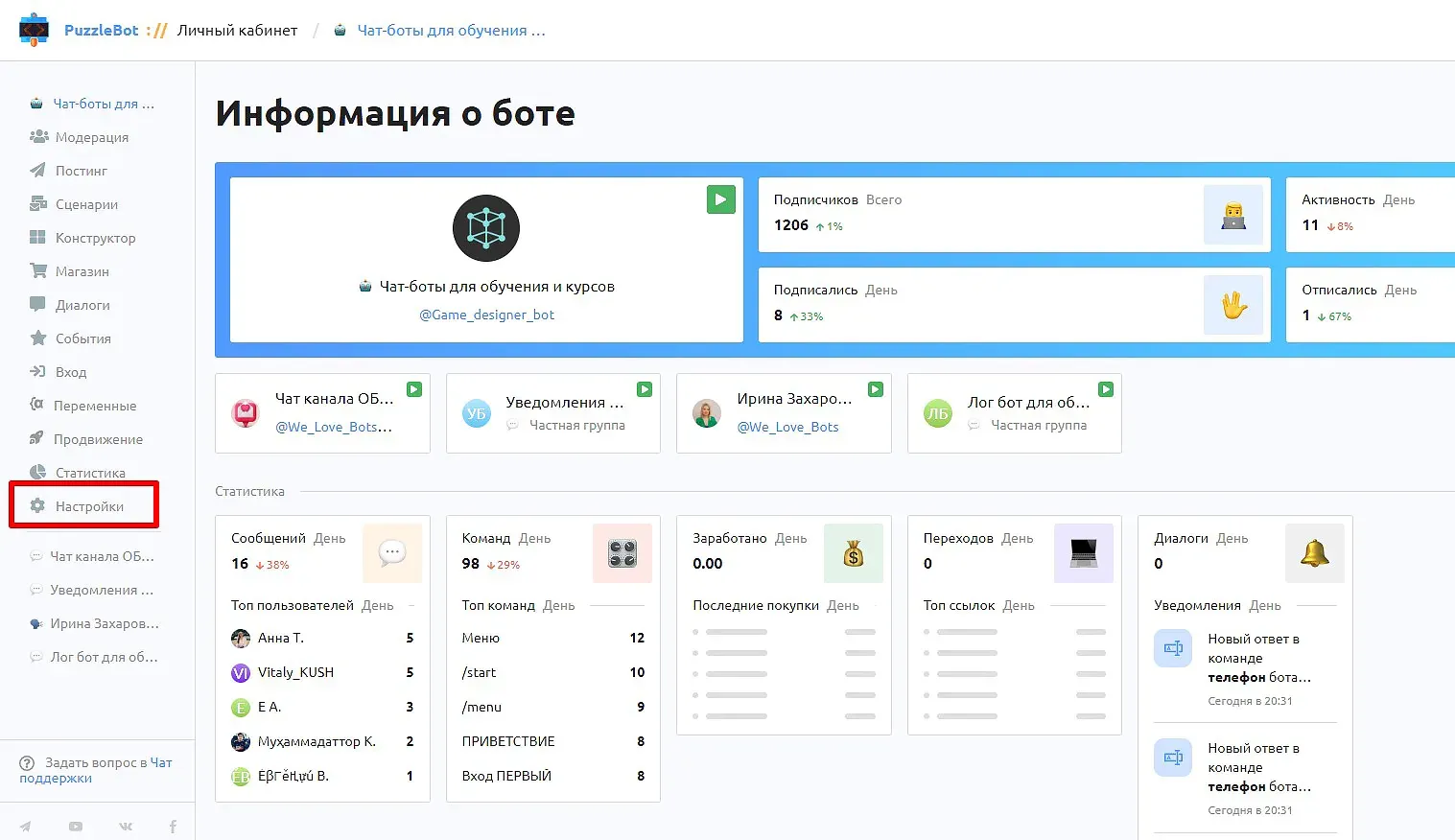
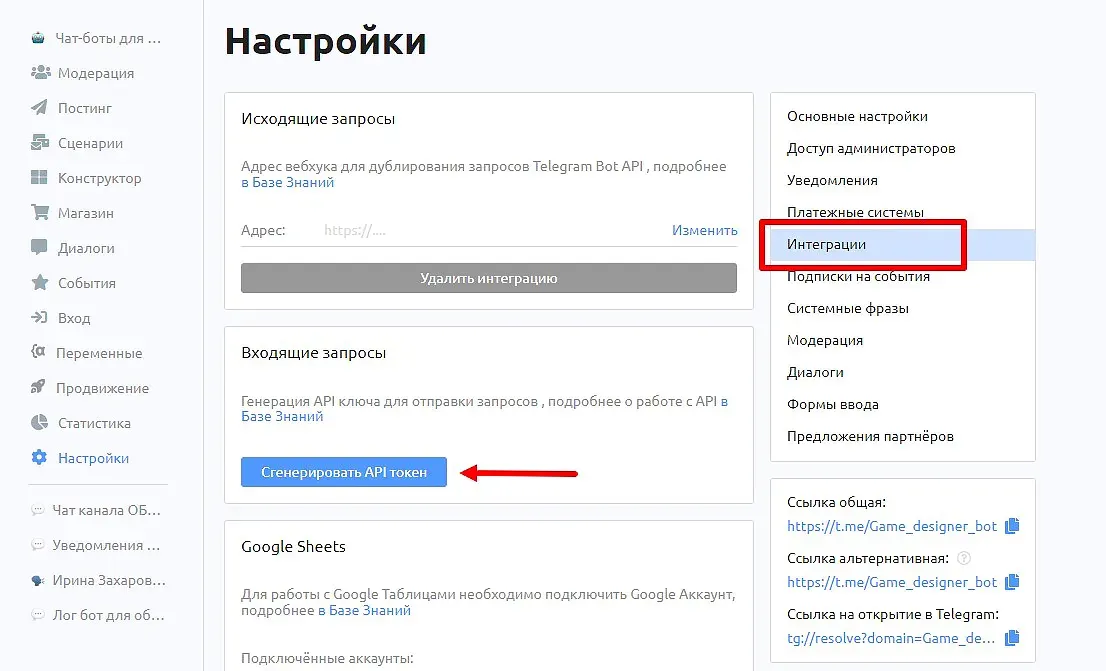
Go to the Integrations tab and click the Generate Api Token button.
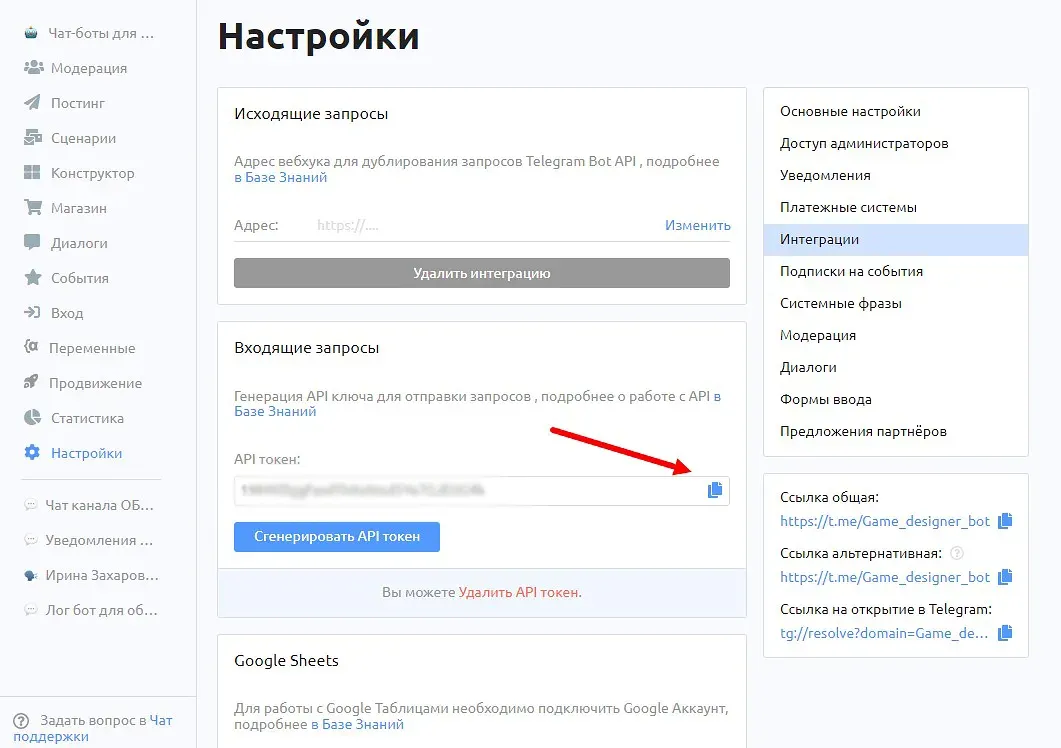
Copy the token.
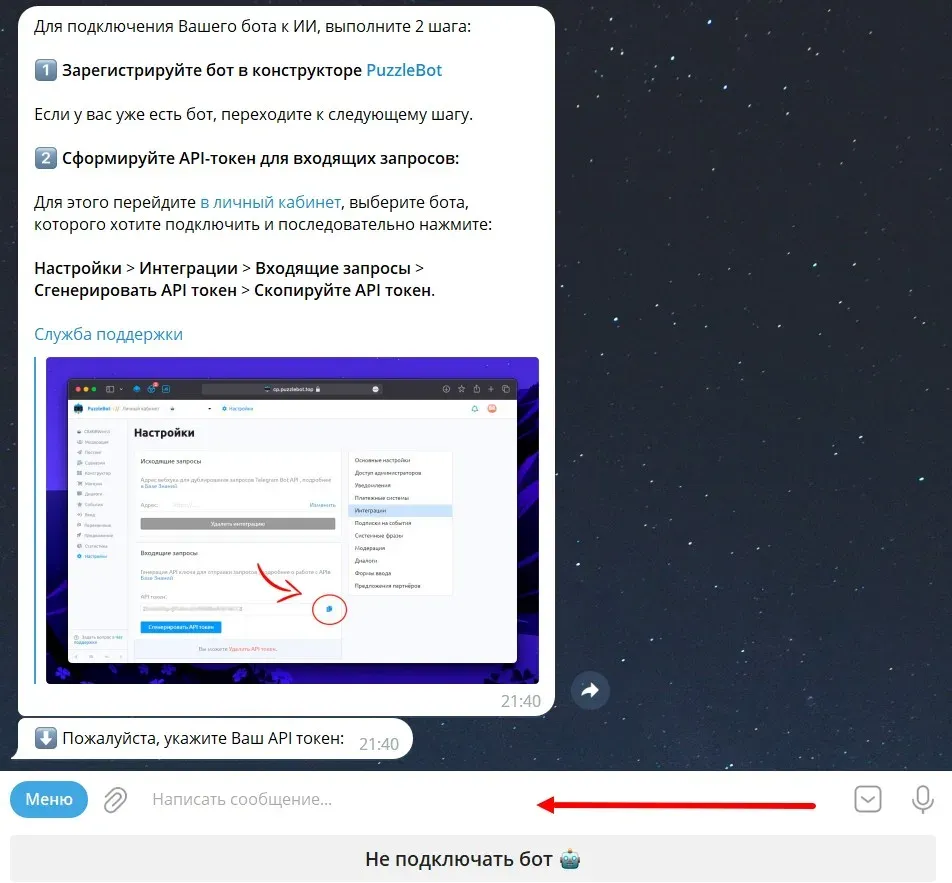
Send the token to the bot https://t.me/ChatGPT_PuzzleBot.
The bot will send you the first message:
"Got your token
Checking connection with PuzzleBot."
Then it will send a second message:

If the bot connection did not happen, write to the project's tech support team
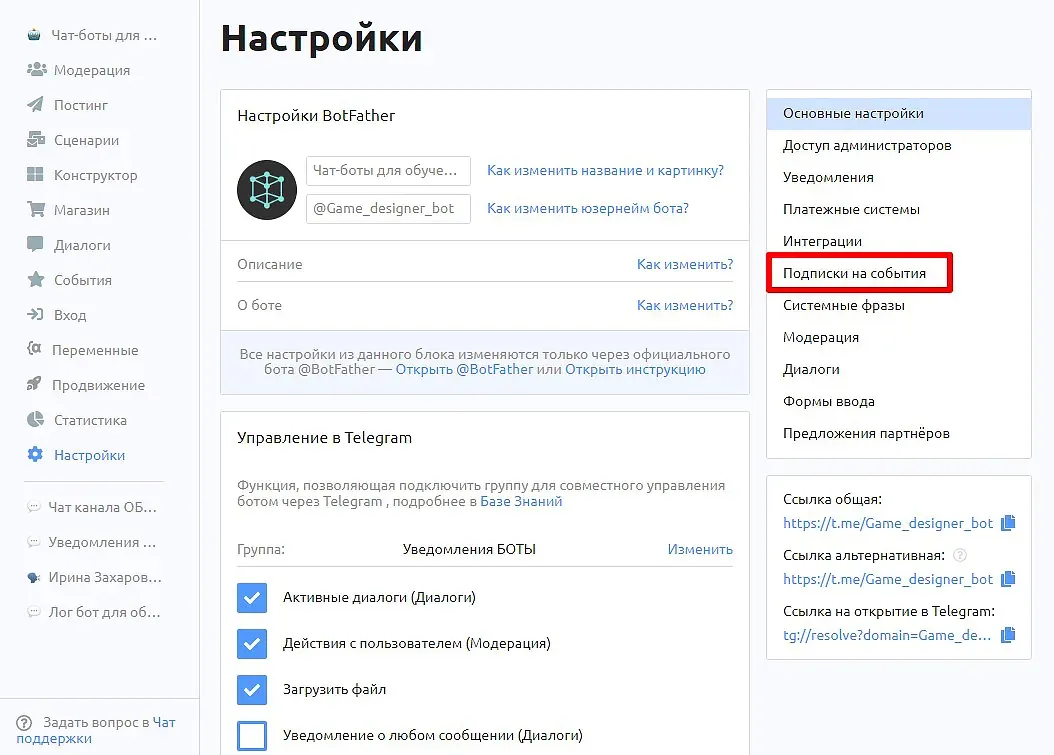
Go to "Settings" and the "Event Subscriptions" tab.
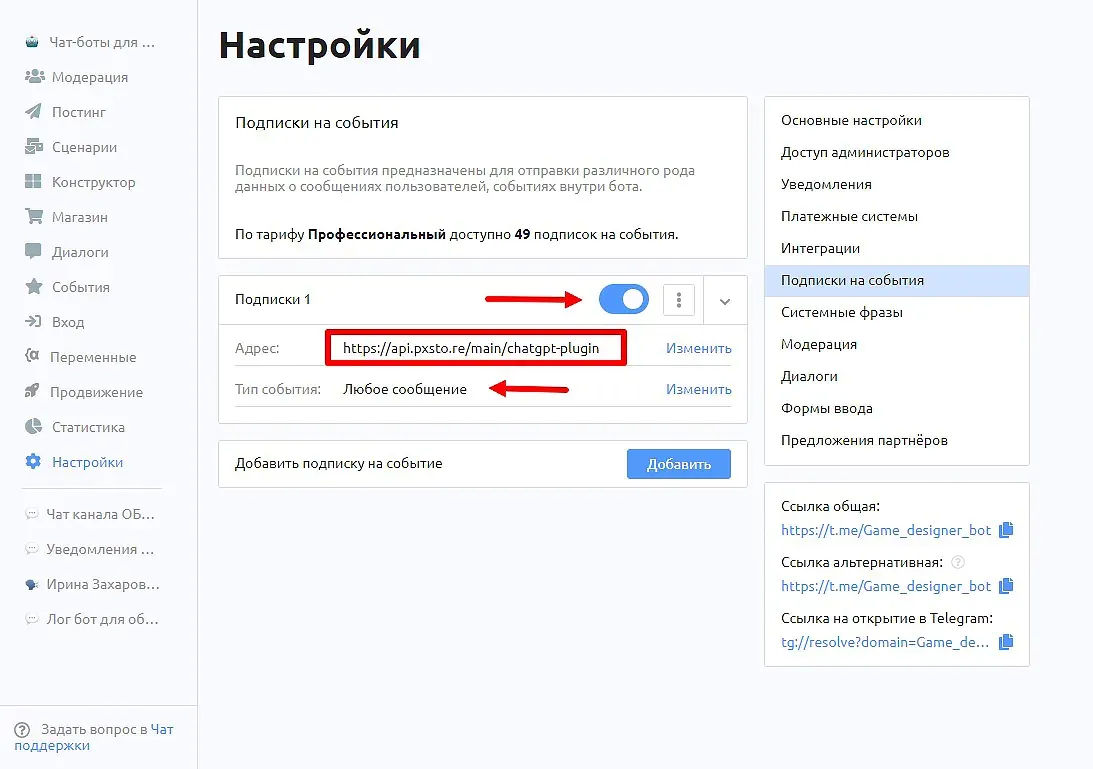
Enter the address https://api.pxsto.re/main/chatgpt-plugin , select the event type "Any Message" and switch the slider to the active position.
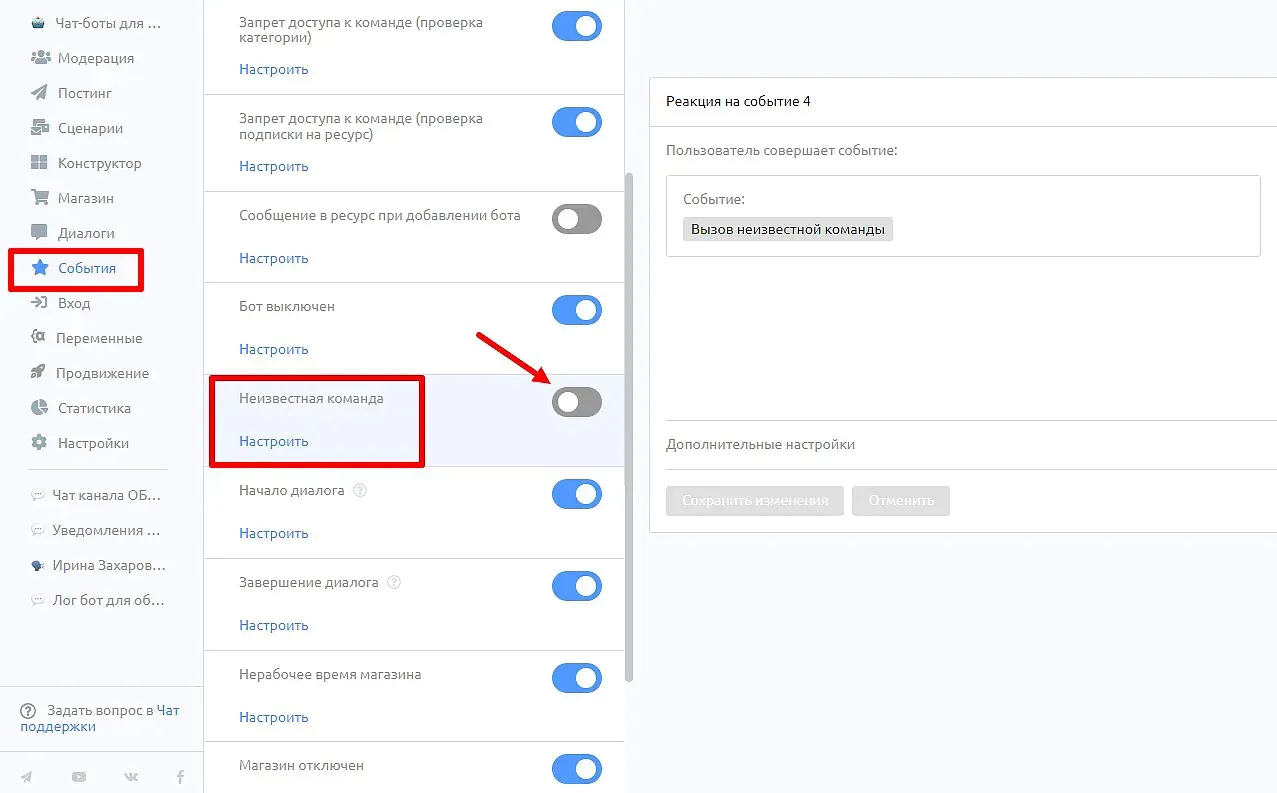
Go into Events and Unknown Command again. And forcibly disable it if it is enabled.
Great! Your bot is ready to go and connected.
2. How to set limits for bot subscribers
Be sure to set up limits for ChatGPT in your bot, otherwise users can use up in a few hours the number of requests you planned to spend during the month.
Limits can be set either daily or global for the total number of all requests per day.
You can allocate different numbers of limits for individual neural networks (ChatGPT or Midjourney). Some of our developers resell requests to their users, coming up with interesting mechanics for bots and groups in Telegram.
Let's look at an example of setting a limit for a beginner - 50 requests.
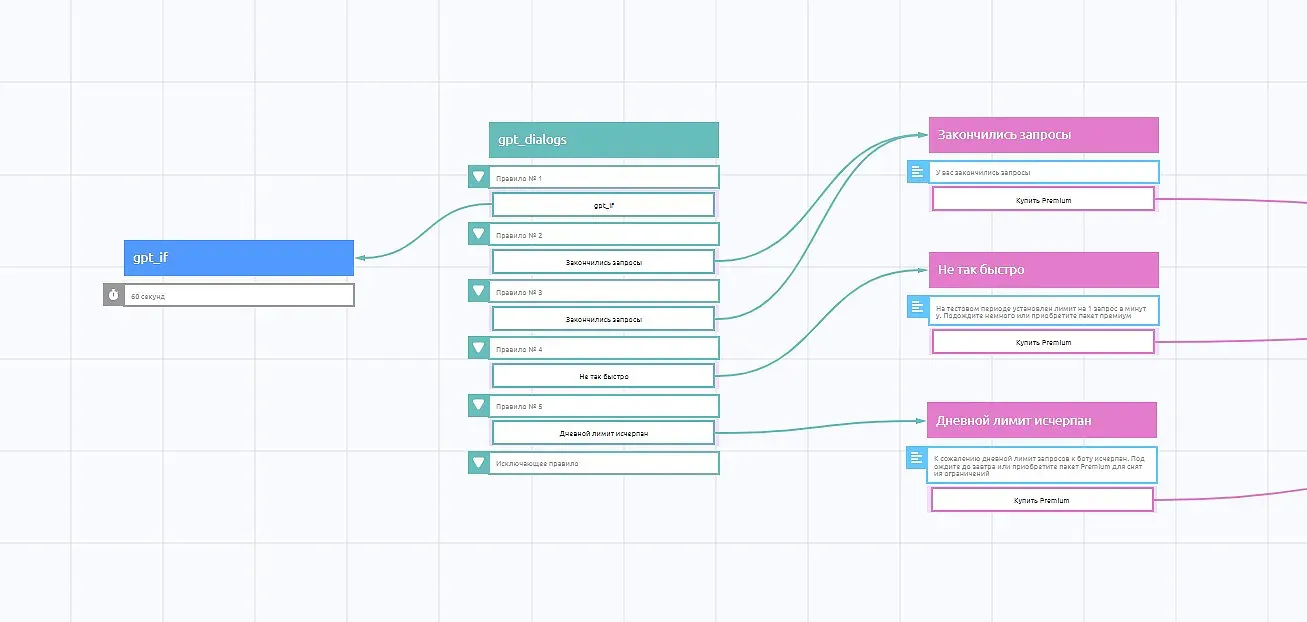
We will need 4 teams and 1 condition.
It is the condition that will decide whether to give the user access to the neuronka, checking the limits.
Let's create variables:
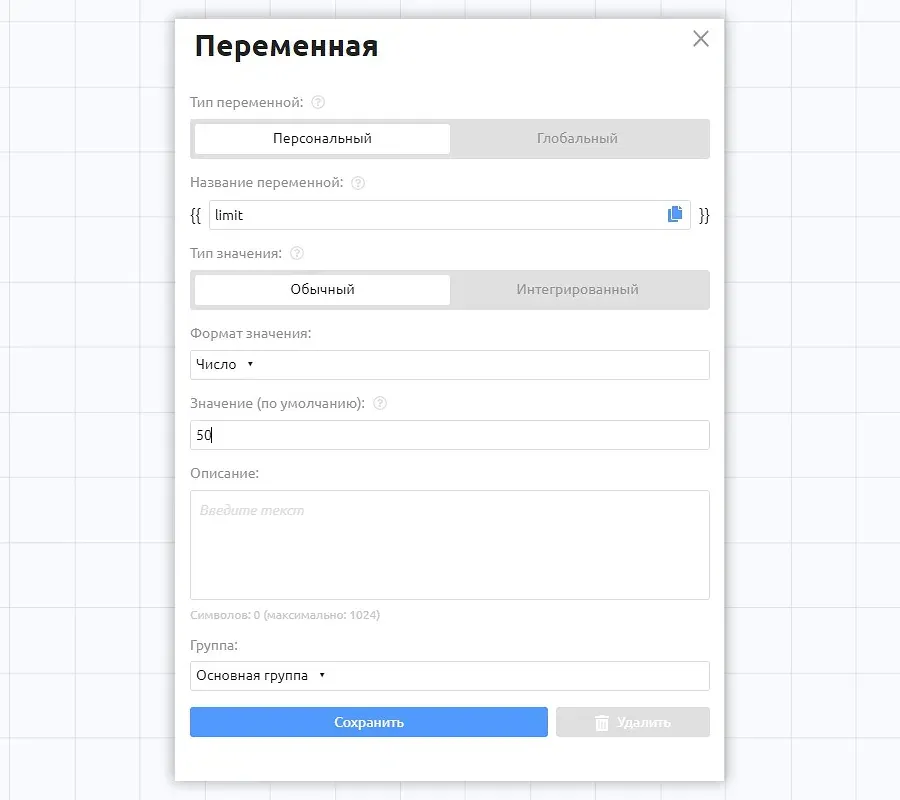
{{limit}} - personal variable, set its default value to 50
{{limit_day}} - global variable sets the limit of requests from all users per day
Let's create categories:
gpt_mute - be sure to write it in this form - turns off the neuronka response
mj_mute - be sure to write it in this form - turns off neuronka's reaction.
Not so fast - we need it to limit the number of requests by time, for example 1 request per minute.
Let's create 3 inline or regular commands to which we will send the subscriber under certain conditions.
The "Not so fast" command will inform that less than a minute has passed since the last request and offer to purchase the Premium tariff, removing the limits.
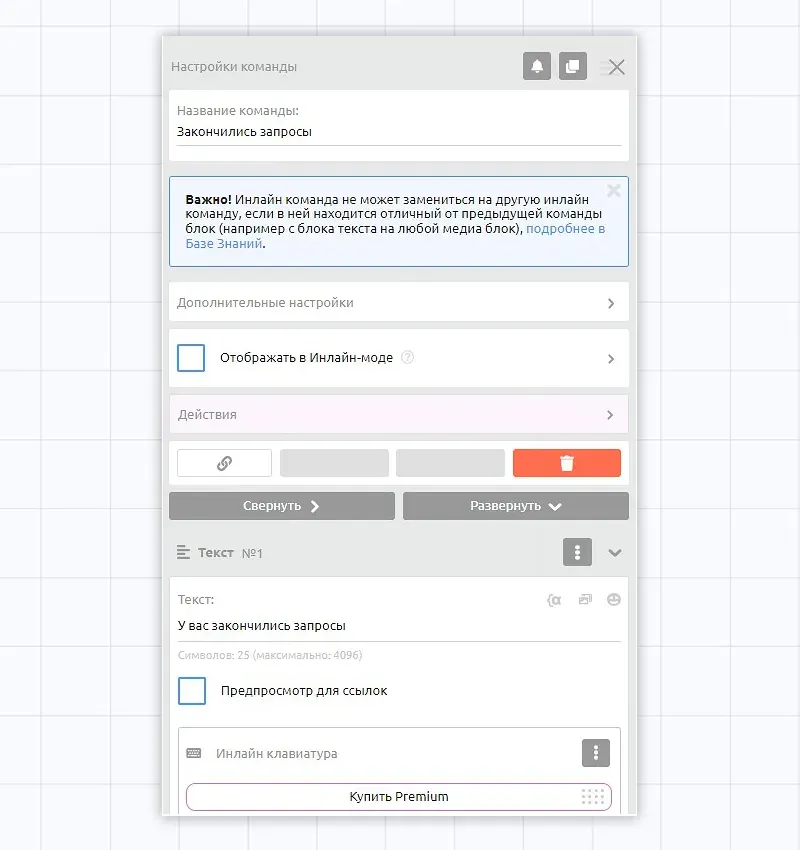
The "Run out of requests" command will inform that the limits have been exhausted and will offer to proceed to purchase.
The "Daily limit exhausted" command will inform you that the total limit for the day is over and will offer to buy the Premium tariff to remove the limits.
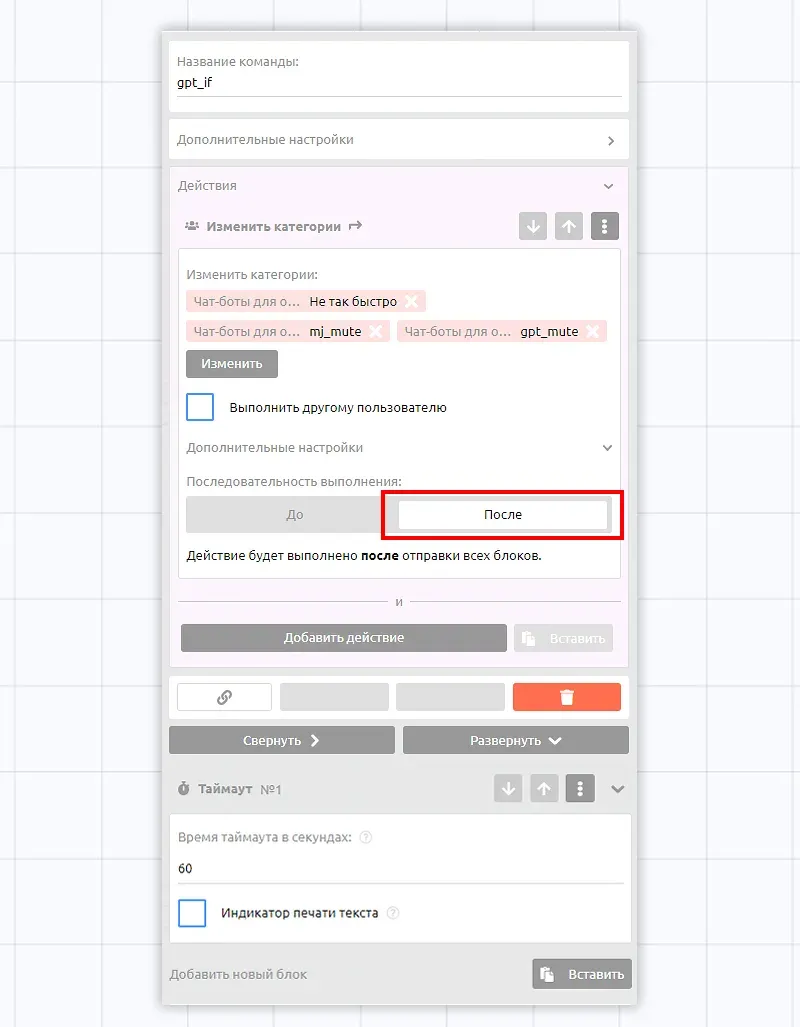
Let's create a command to handle requests to the AI. For this purpose, let's name the command gpt_if if we are configuring requests to ChatGPT or mj_if if we are configuring requests to Midjourney
Inside the command, create a timeout after which the bot will be ready to process requests again. In this case we have set the interval to 60 seconds. After this time all 3 categories will be disabled.
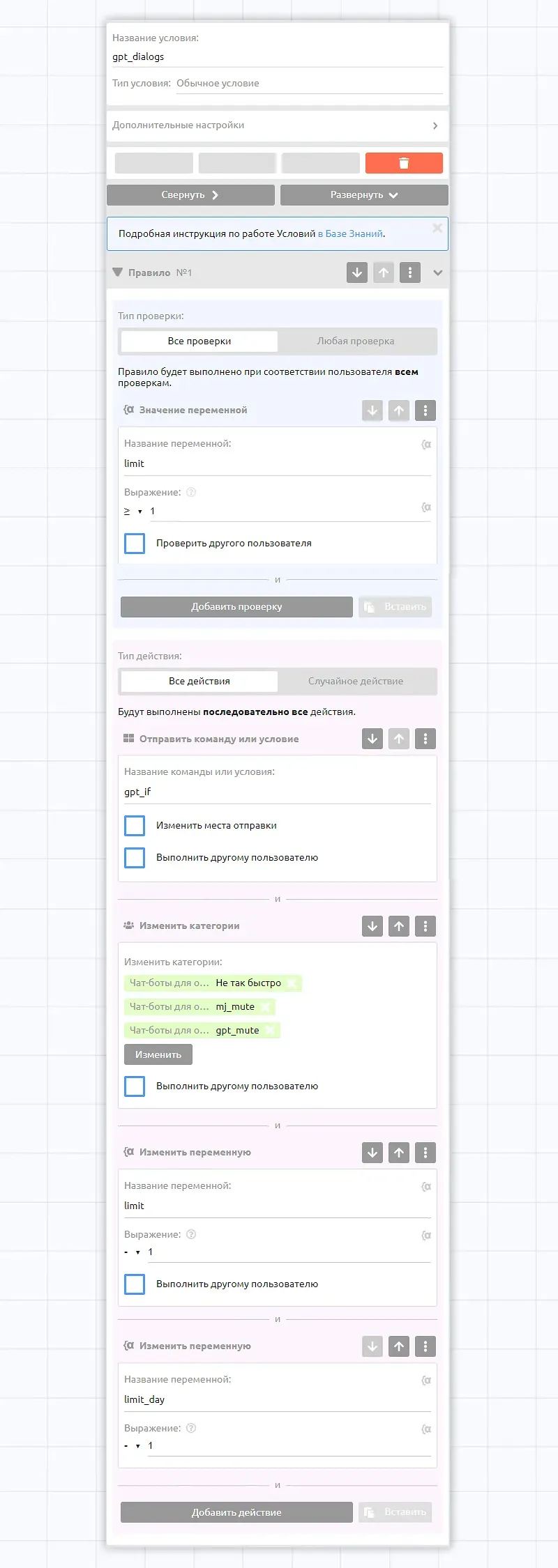
Create a condition with four rules inside.
The logic is as follows: if our limit is not exhausted, we send a command to work with artificial intelligence. Then immediately assign three categories that temporarily block requests and reduce the limit values.
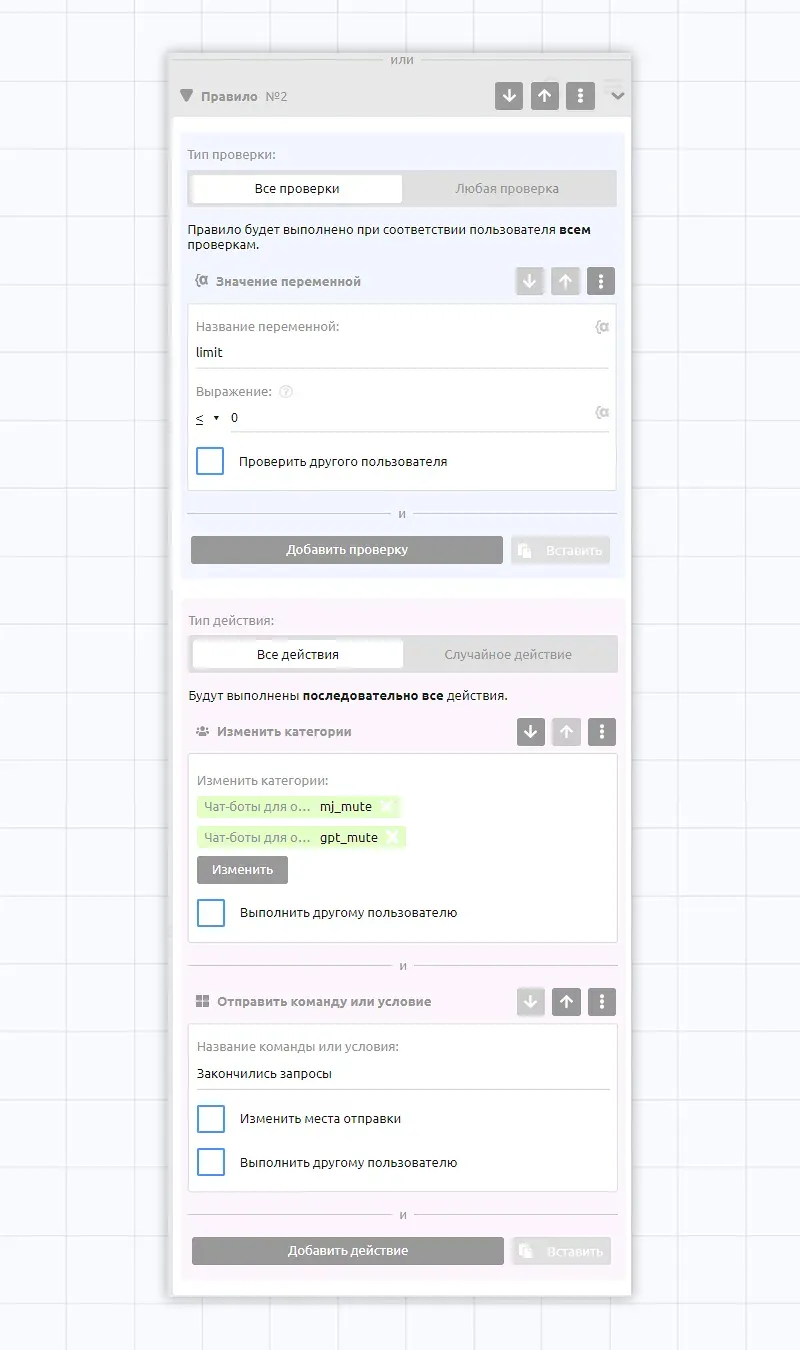
Rule 2 within the same condition. If the limit is exhausted, assign categories and send a command with the message that the limit is exhausted.
Rule 3 is designed to handle requests that are too frequent. For example, if a subscriber sends the next request after only 30 seconds, although you have a limit of 60, the bot will send him a message.
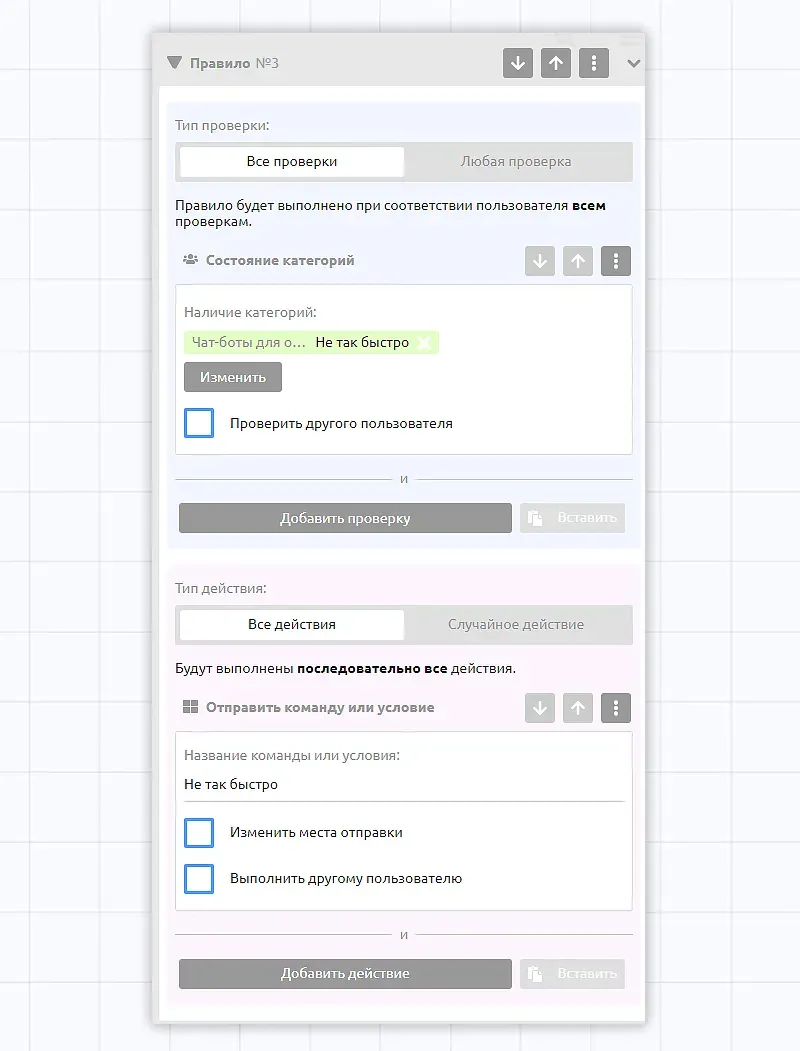
Rule 4 keeps track of the total daily limit for all subscribers.
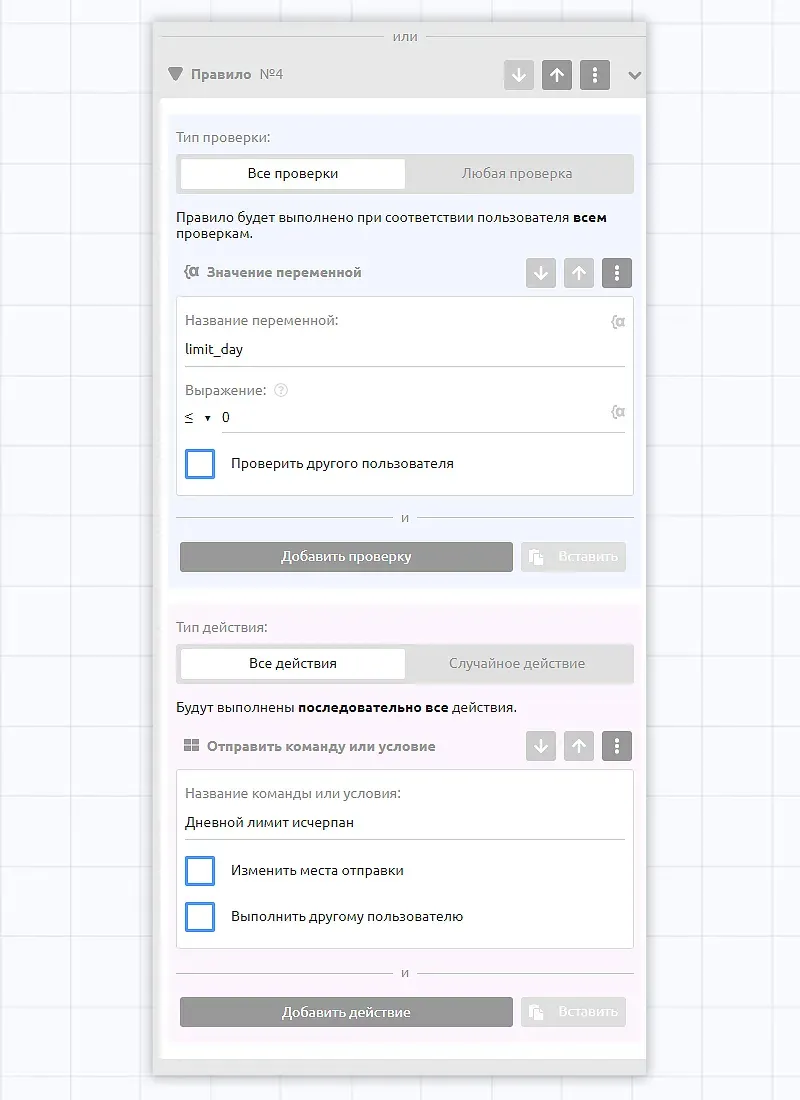
In order for the limit on requests per day to work correctly, we will set a limit on these requests and reset the value of the variable once a day via a script - we are already preparing instructions on how to do this.
Personal message limits can be configured in a similar way. For example, if we want each of our subscribers to be able to send up to 50 requests per day, we will set this value as the default value in the variable section.
Let's set up the "Unknown command" again. Go to "Events" - "Unknown command" and enter the transition to our condition.
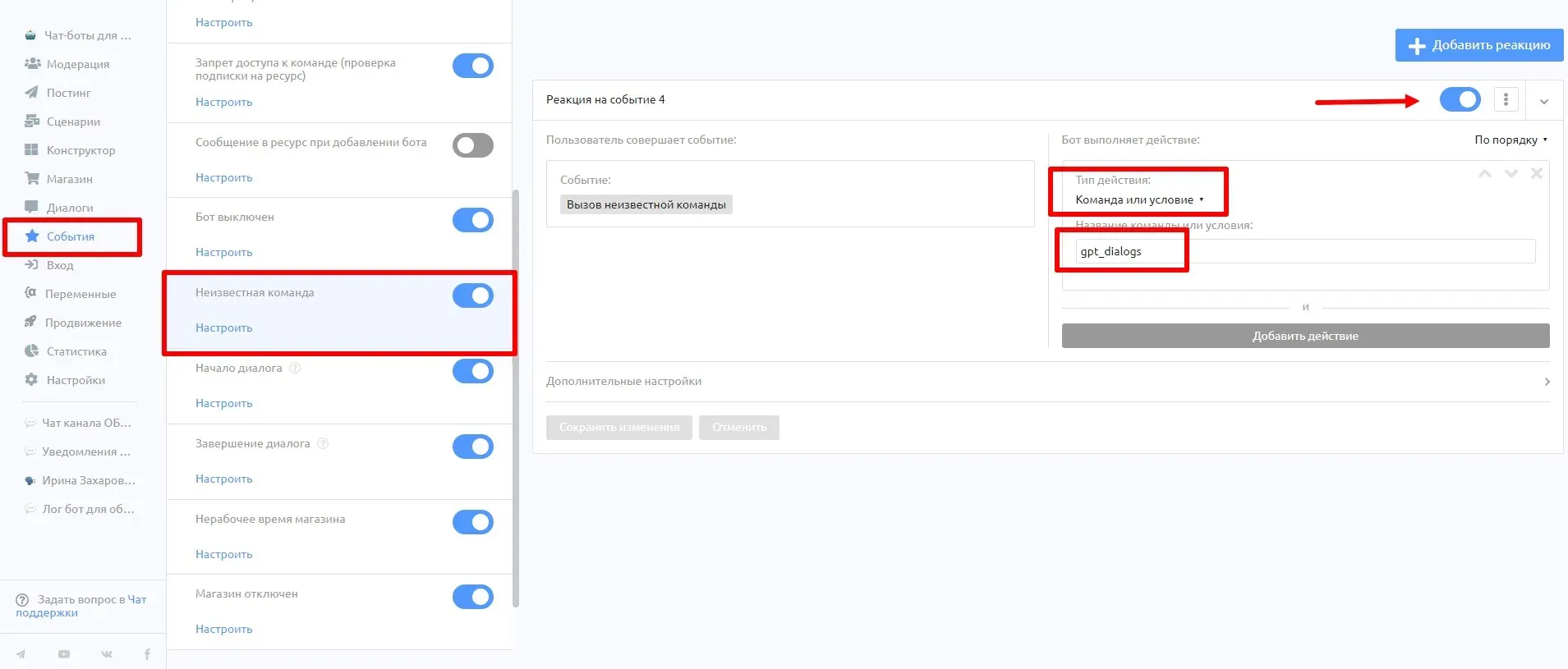
This way we were able to set a limit of 50 requests for a new subscriber.
Subscribe to the project blog with free queries, stay up to date with news and connect with like-minded people.