How do you boost audience engagement and get more accurate data? Questions with several correct answers are a great way to do it!
In this guide, we'll show you how to build quizzes like this that award points for each correct answer.
Step 1 — Connect your bot to puzzlebot
You can find out how in the Knowledge Base: https://help.puzzlebot.top/article?r=3&a=18
Step 2 — Create and set up the question command

Go to the Constructor tab and delete the preset commands:
1. Hold Shift+Alt, select all commands with the left mouse button and delete them.
2. Apply the changes.

Create the first command, which will contain the question and the answer options:
1. Click + (add command).
2. Choose a regular command.
3. Enter the command name.
4. Choose the Input form block.

5. Choose the Text block and add the question.
6. Add a name for statistics.
7. Keep the default variable or enter your own name.
8. Set the input type to Option selection.

9. Choose Multiple options to select.
10. Use the Add option button to add the answer options and arrange them in the order you need.
*The Confirm button is set up by default — leave it as is.

Create a variable:
1. Go to the Variables tab.
2. Click Add variable - Personal variable.
3. Enter the variable name.
4. Set the value format to Number.
5. Enter zero in the Value (default) field.
When everything is set, click Save.

Step 3 - Create and set up the result command
Go back to the Constructor tab.
Create the second command, which will show the result:
1. Click + (add command).
2. Choose a regular command.
3. Enter the command name.
4. Choose the Text block and use the variable to show the user's answer. We'll also show the number of points scored using the variable we created.
Step 4 - Create and set up the answer check command
Create the third command, which will check the answer and award points:
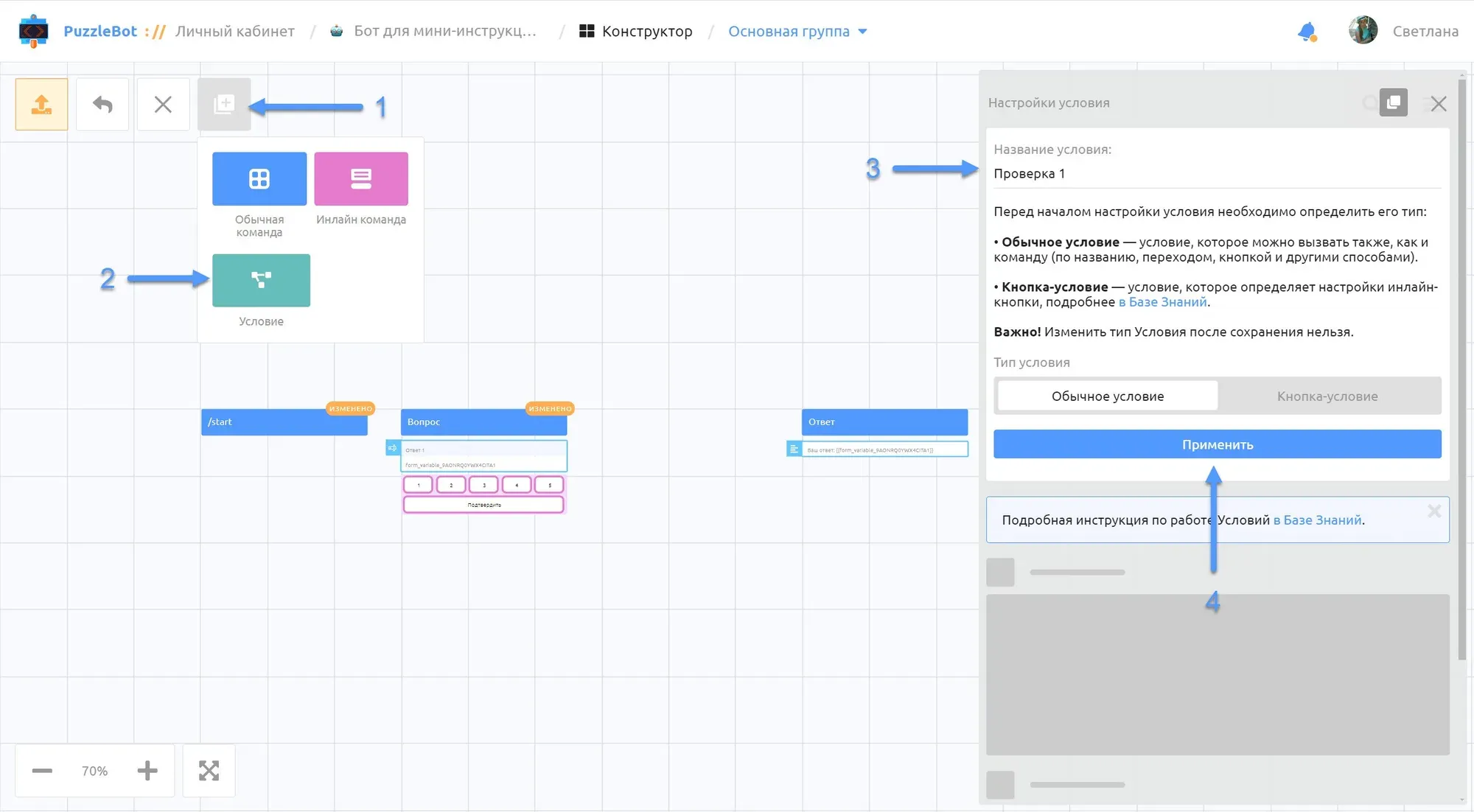
1. Click + (add command).
2. Choose the Condition block.
3. Enter the command name.
4. Click Apply.

5. In the rules, choose the Variable value check and specify the variable where the user's answer is saved. Set the condition type to Message contains. In Phrases, enter a correct answer.
6. Use the Add check button to add the other correct answers, repeating step 5.
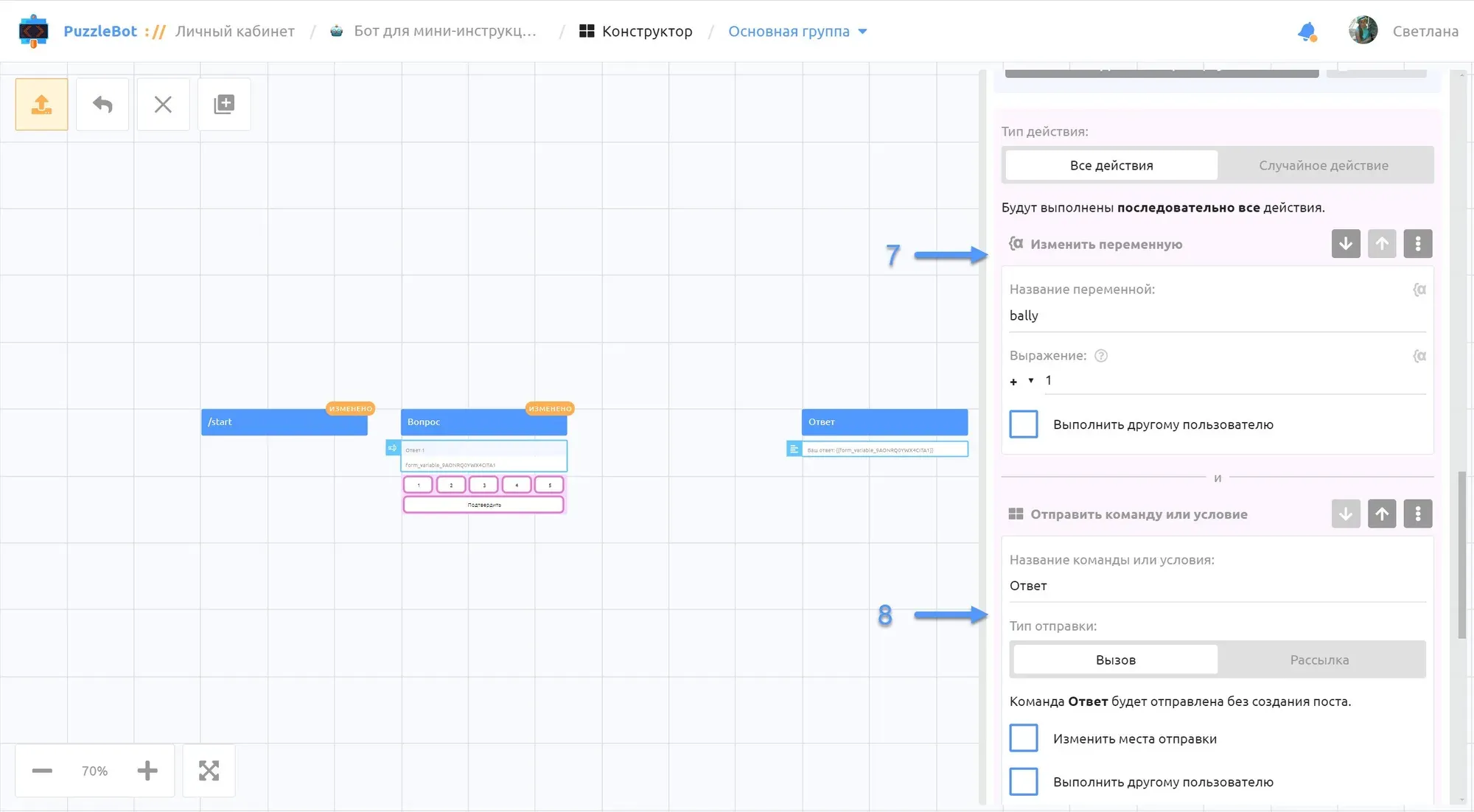
7. Under Action type, choose change variable, select the variable you created for counting points and enter "+1 point".
8. Under Action type, choose send command and select the "Answer" command.

9. In the exclusion rule, set the action type to send command or condition and select the "Answer" command.
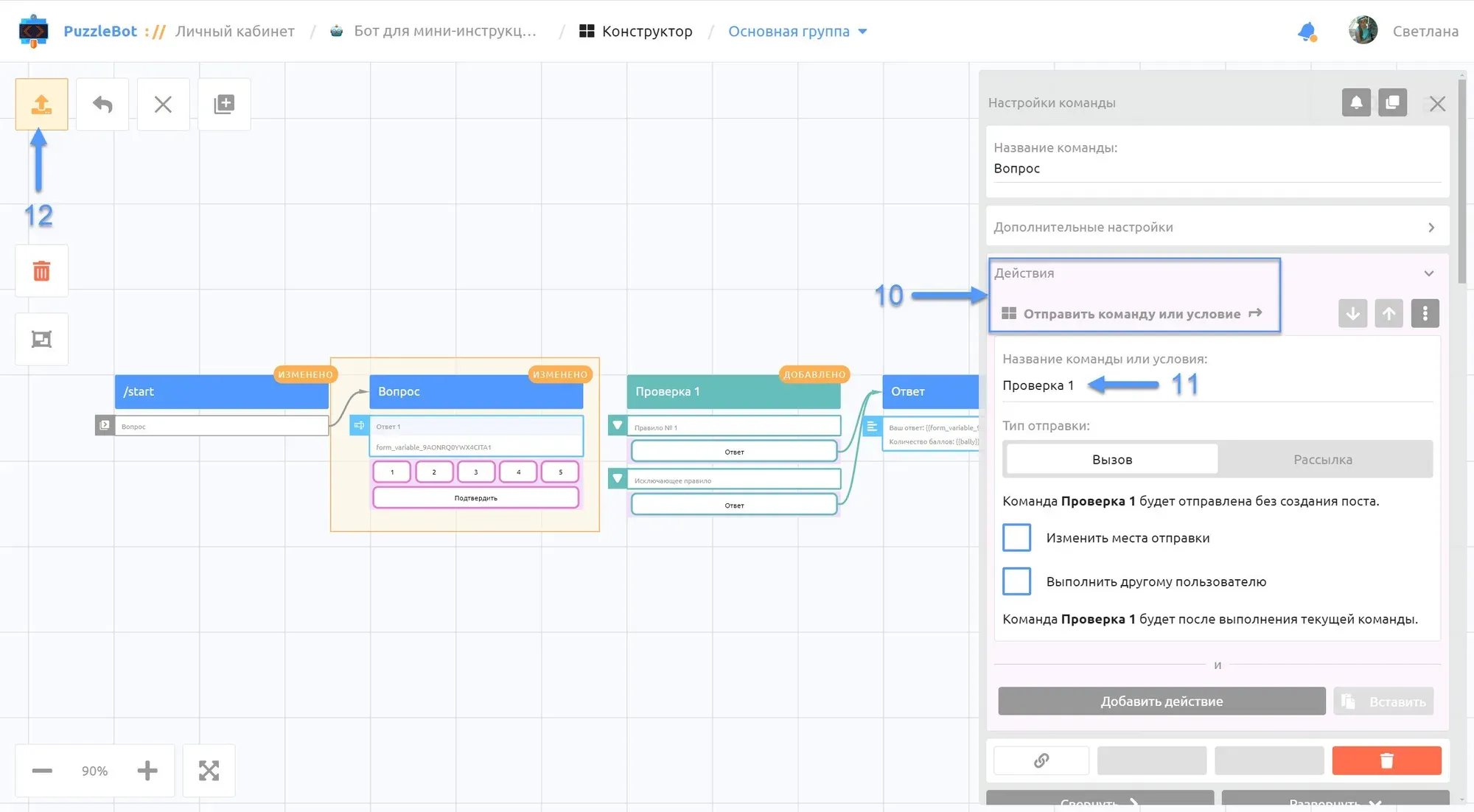
Connect all the commands:
10. Open each command in turn and go to the Actions section.
11. Choose Send command or condition and enter the name of the command you need.
12. Apply all the changes.
Step 5 — Test the bot
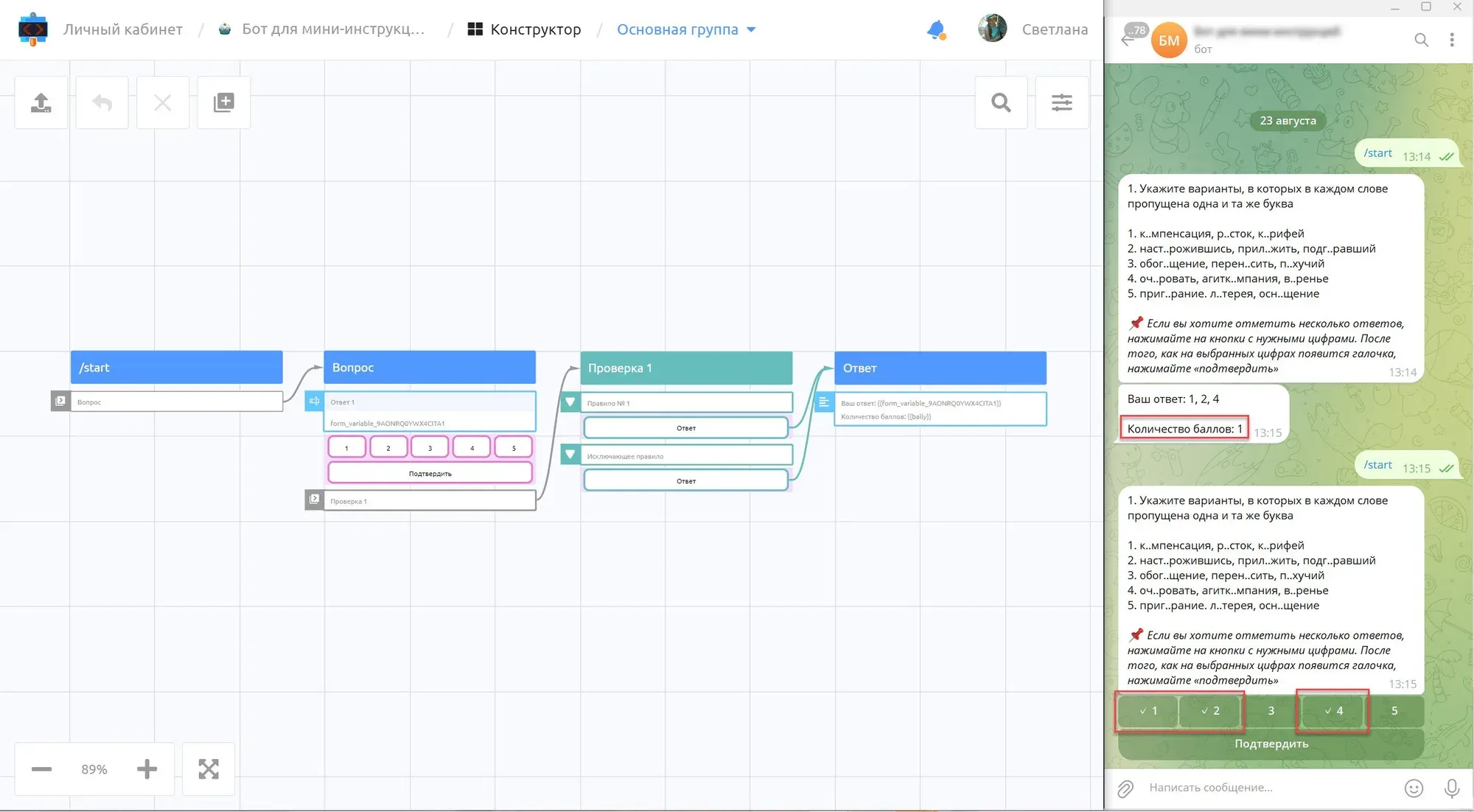
Test the bot from any account. To choose several answers, tap the buttons with the answers you want. Once a check mark appears next to the selected answers, tap "Confirm".
That's it: your quiz can now have questions with several correct answers and award points for the right ones.
Want to ask an expert a question? Leave it in the comments under the latest post in our channel — the most interesting ones will get a detailed breakdown.