Our expert Svetlana Gizatulina explained how to build a survey bot that saves answers to a Google spreadsheet. This feature is useful for collecting user answers in a single database for further analysis.
Step 1 — Connect the bot to puzzlebot
Learn how to do it in the Knowledge base: https://help.puzzlebot.top/article?r=3&a=18
Step 2 — Set up the integration with your Google account
Learn how to do it in the Knowledge base: https://help.puzzlebot.top/article?r=17&a=159
Step 3 — Create and prepare a spreadsheet

In your Google account, create a spreadsheet, rename it and add column names. We'll use:
USER_ID - the user's unique ID.
FIRST_NAME - the name from the user's profile.
Answer 1 - the answer to question 1, which the user types in.
Answer 2 - the answer to question 2, which the user selects.
Step 4 — Create and set up commands
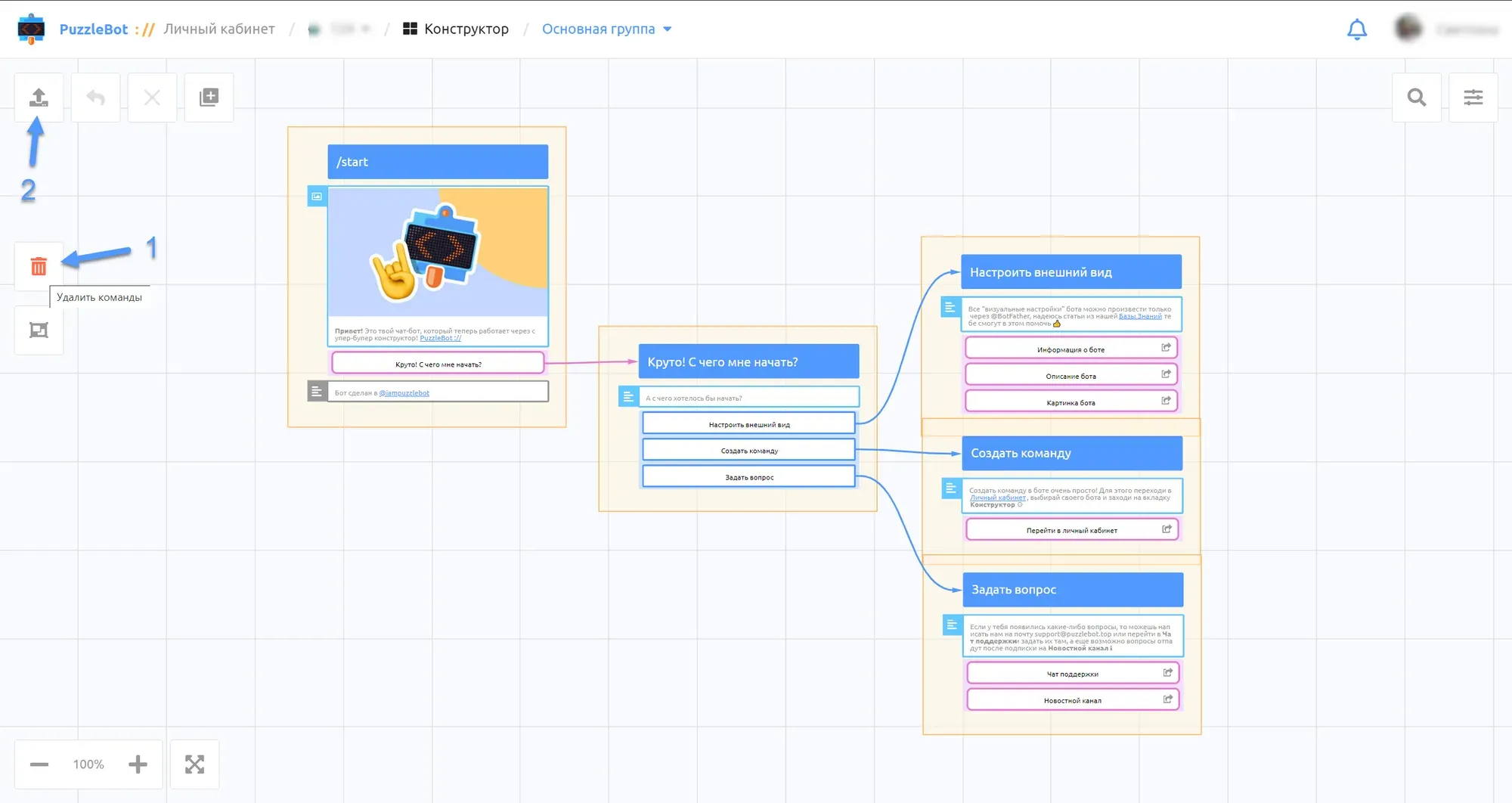
Go to the Constructor tab and delete the preset commands:
1. Hold shift+alt, select all the commands with the left mouse button and delete them.
2. Apply the changes.

Create the first command:
1. Click + (add command).
2. Select a regular command.
3. Enter the command name "Question 1".
4. Select the Input form block.
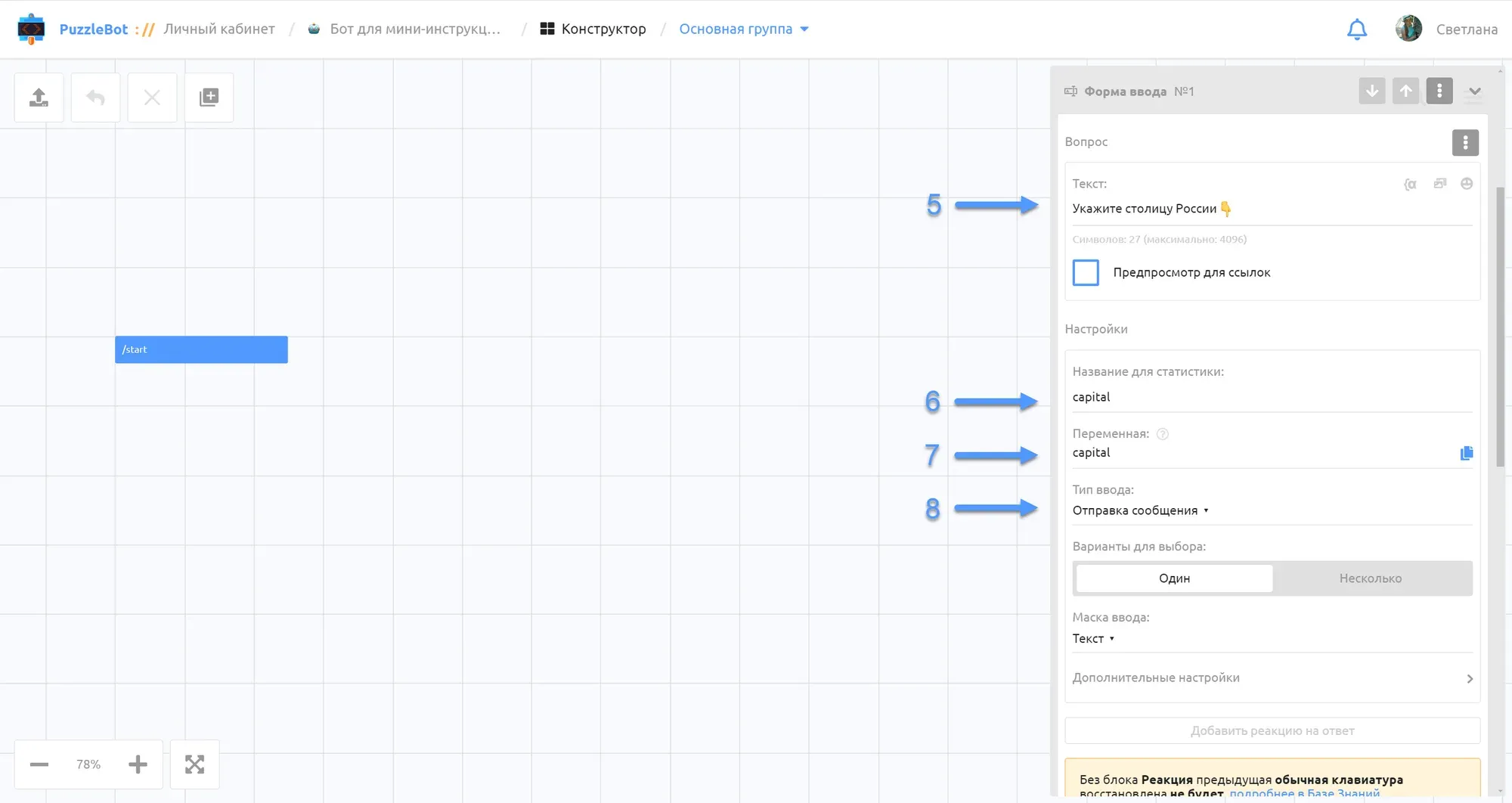
5. Add a question, for example: "What is the capital of Russia? 👇".
6. Enter a name for statistics.
7. Specify a variable.
8. Select the input type: sending a message.
Create the second command:
1. Click + (add command).
2. Select a regular command.
3. Enter the command name "Question 2".
4. Select the Input form block.

5. Add a question, for example: "How many time zones does Russia have? 👇".
6. Enter a name for statistics.
7. Specify a variable.
8. Select the input type: sending a message.
9. Select the keyboard type: inline.
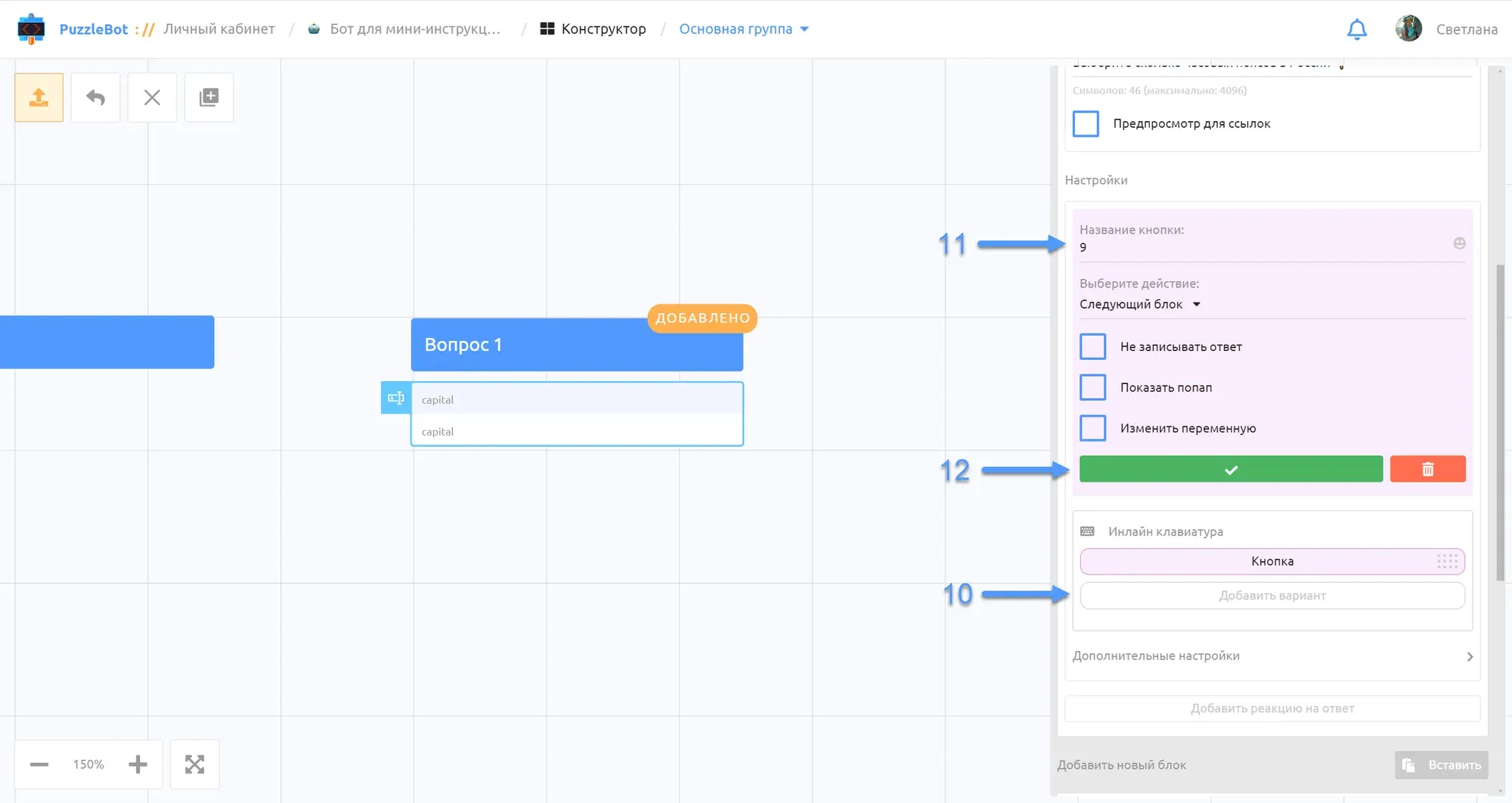
10. Click Add option.
11. Enter the answer.
12. Save the setting.
Repeat steps 10-11 to add as many answer options as you need.
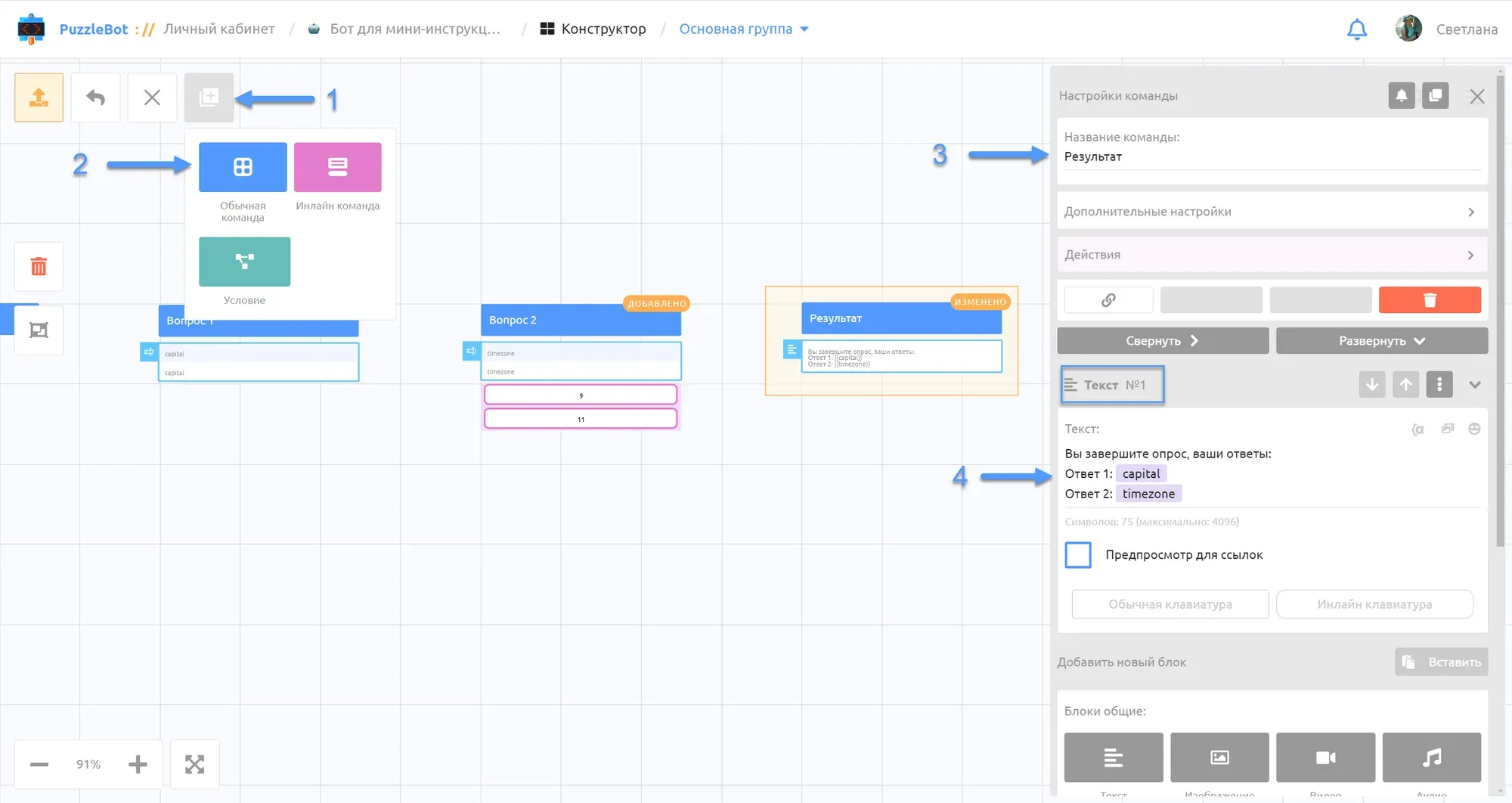
Create the third command:
1. Click + (add command).
2. Select a regular command.
3. Enter the command name "Result".
4. Select the Text block and add:
You've completed the survey, your answers:
Answer 1: {{capital}}
Answer 2: {{timezone}}
With this setup, users will see their answers in one message. If you don't need that, write: Survey completed!

5. Open the Actions section.
6. Find the Google Spreadsheets section and select Create row.

7. Select the spreadsheet you created.
8. Select the prepared sheet.
Fill in the rows: click the variable icon {a and find the ones you need, or enter them manually:
{{USER_ID_TEXT}} - user ID
{{FIRST_NAME_TEXT}} - name from the profile
{{capital}} - answer to question 1
{{timezone}} - answer to question 2

Link all the commands together:
9. Open each command in turn and go to the Actions section.
10. Select Send command or condition.
11. Enter the name of the command you need and apply all changes.
Step 5 — Test the bot
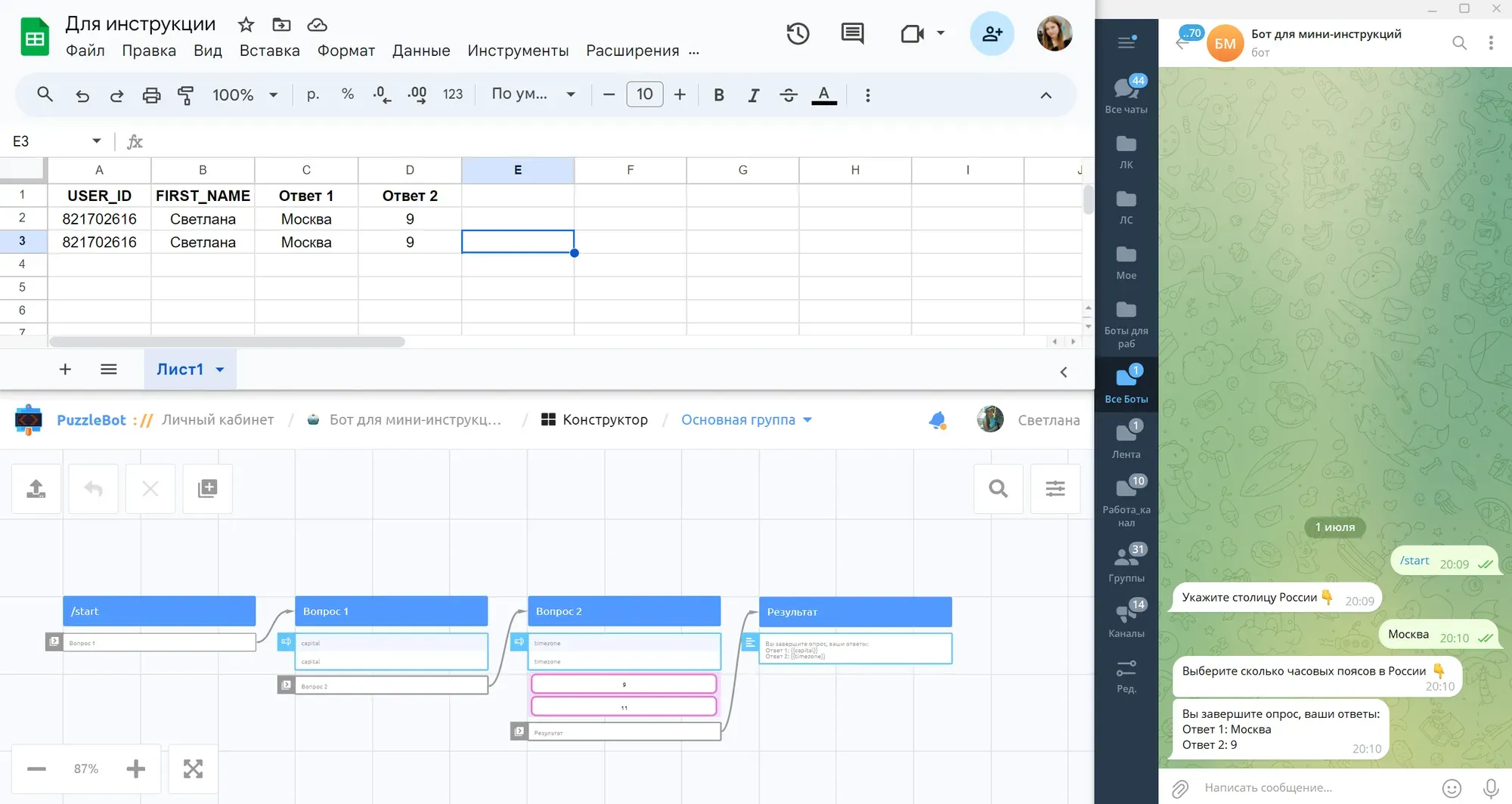
From any account, open the link and answer the bot's questions, then check the result.
The setup is done: now the bot will save user answers to the spreadsheet.
Want to ask our expert a question? Leave it in the comments under the latest post in our channel, and we'll break down the most interesting ones.