In one of the previous articles, we configured the collection of subscribers into a single database. Now let's add the ability to see from what source they come to our bot.
Watch the video lesson or read the article
To customize we will need to:
Add 1 category per source
Create a {{source}} variable
Create login links
Define a condition
How it works
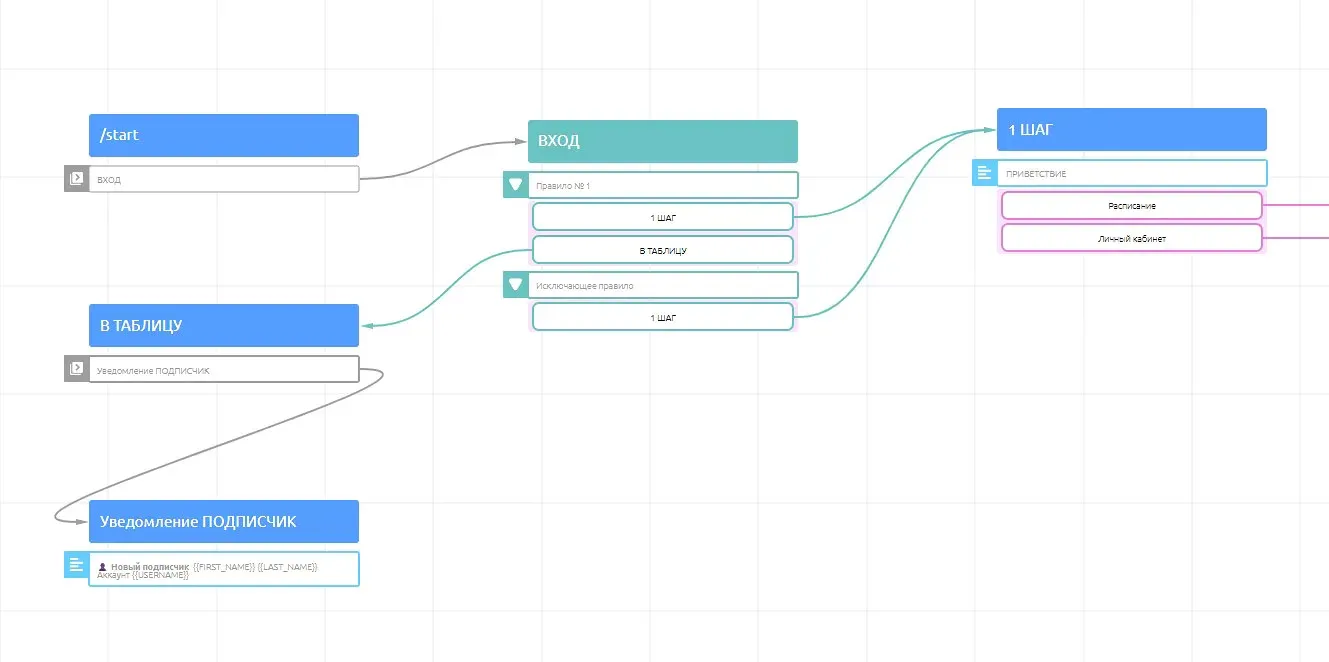
In each source we place a special link, when clicking on which the subscriber is assigned a category. After pressing the /start button, the bot sends to an additional condition, within which it checks for all source categories. If it finds the right one, it puts the name of the source into the variable value - then the subscriber is entered into the table with the source mark.
Step 1: Create 1 category for each source and variable
For example, the categories "Enter from channel" and "Enter from site" and the variable {{source}}.
Step 2. Create 1 reusable link for each source

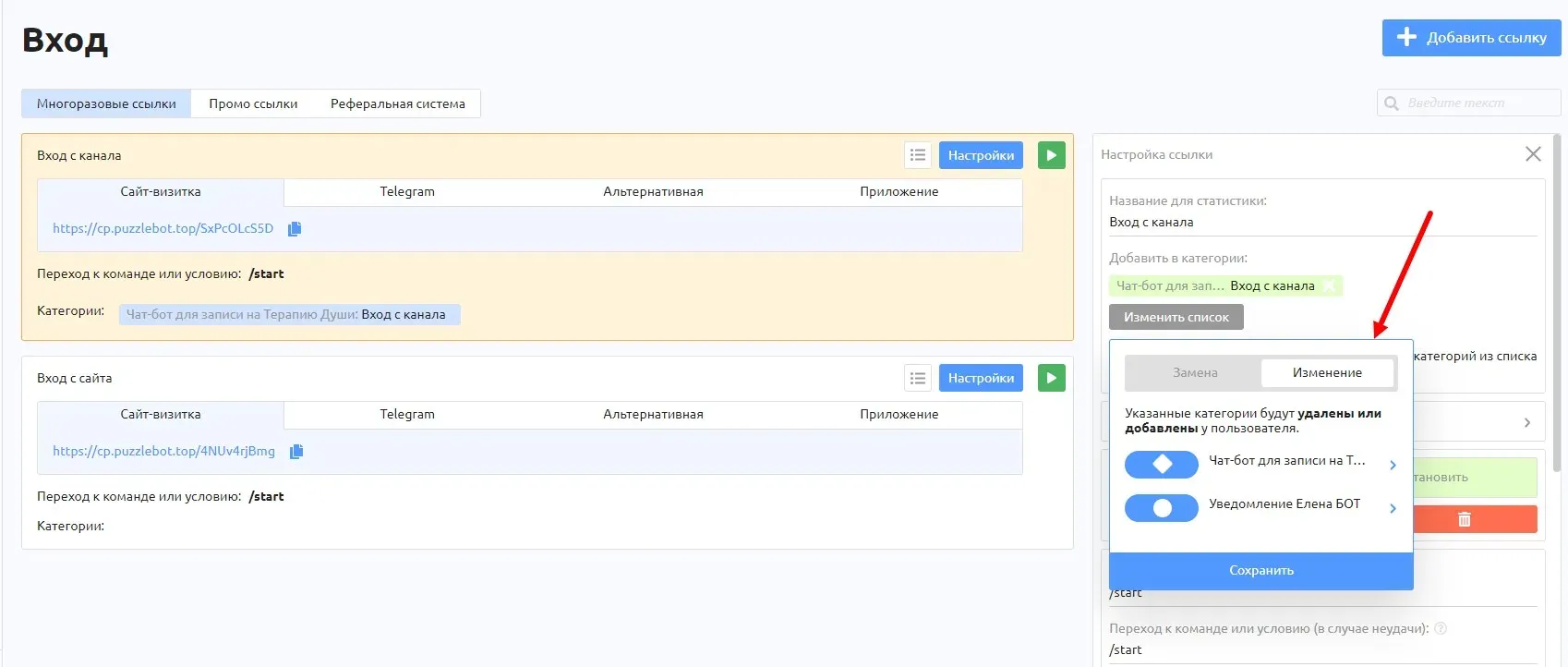
Inside the link, let's customize adding it to the appropriate category.

Be sure to run the link to make it work.
Step 3: Create a condition
Let's create the "SOURCE" condition and configure a separate rule for each source.

If we find that our subscriber has the category "Input from channel", we will put the phrase "Input from channel" in the value of {{source}} variable. Let's set up all other sources according to this logic. If none of the categories is detected, we will put the phrase "Not known" into the {{source}} variable.

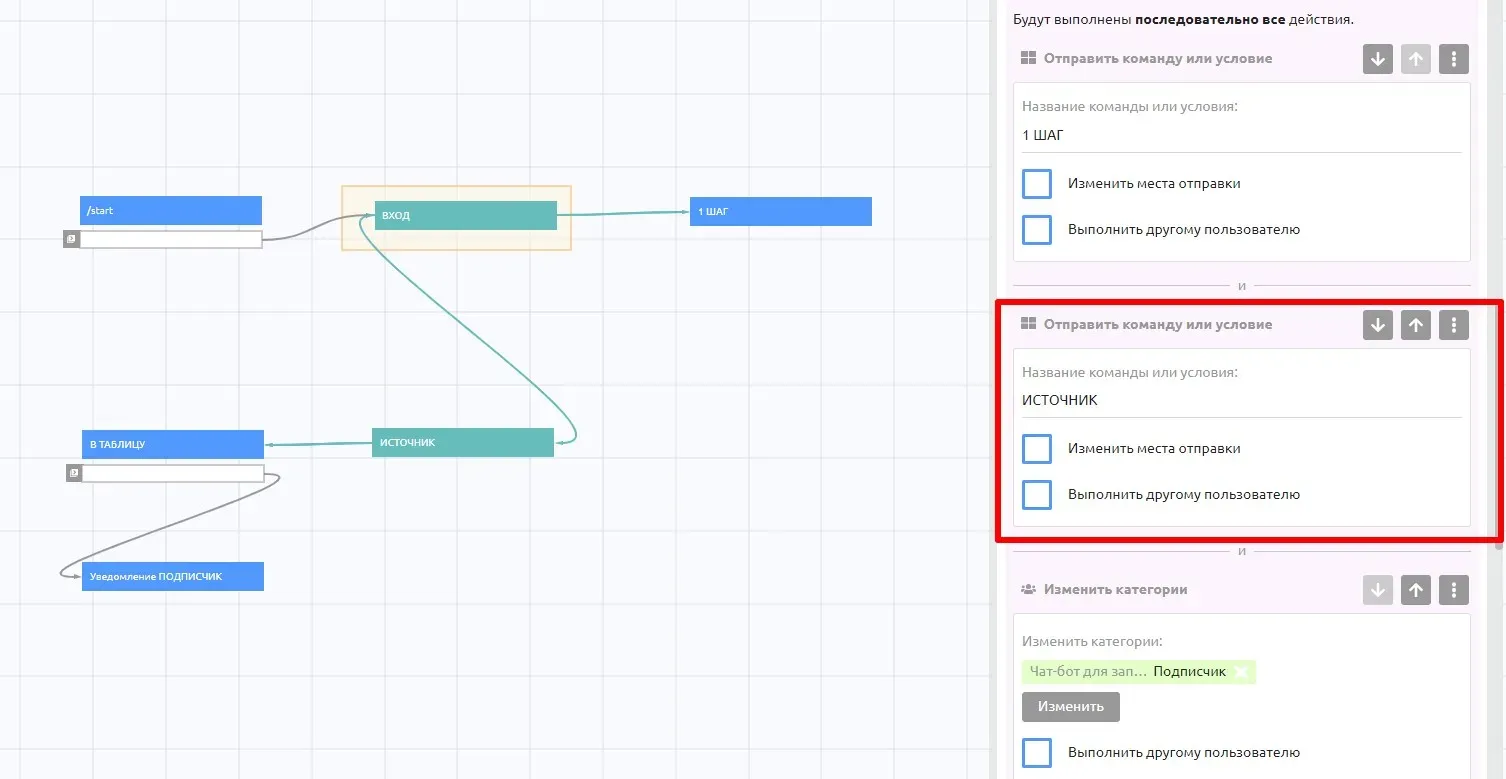
Step 4: Change the "INPUT" condition
In the "INPUT" condition, change the name of the team to which we are directing the new subscriber. Instead of "To table" we will choose "SOURCE".
Step 5: Enter the variable into the table
Let's enter our {{source}} variable into the Google table.

Step 6. add the {{source}} variable to the notification.

Done!
Now when a new subscriber appears, the bot will send a notification with the source and add information about it to the table.