To customize we will need:
Create 4 commands
1 condition
1 category
Connect google table to our project
Connect group, if we plan to receive notifications about new subscribers
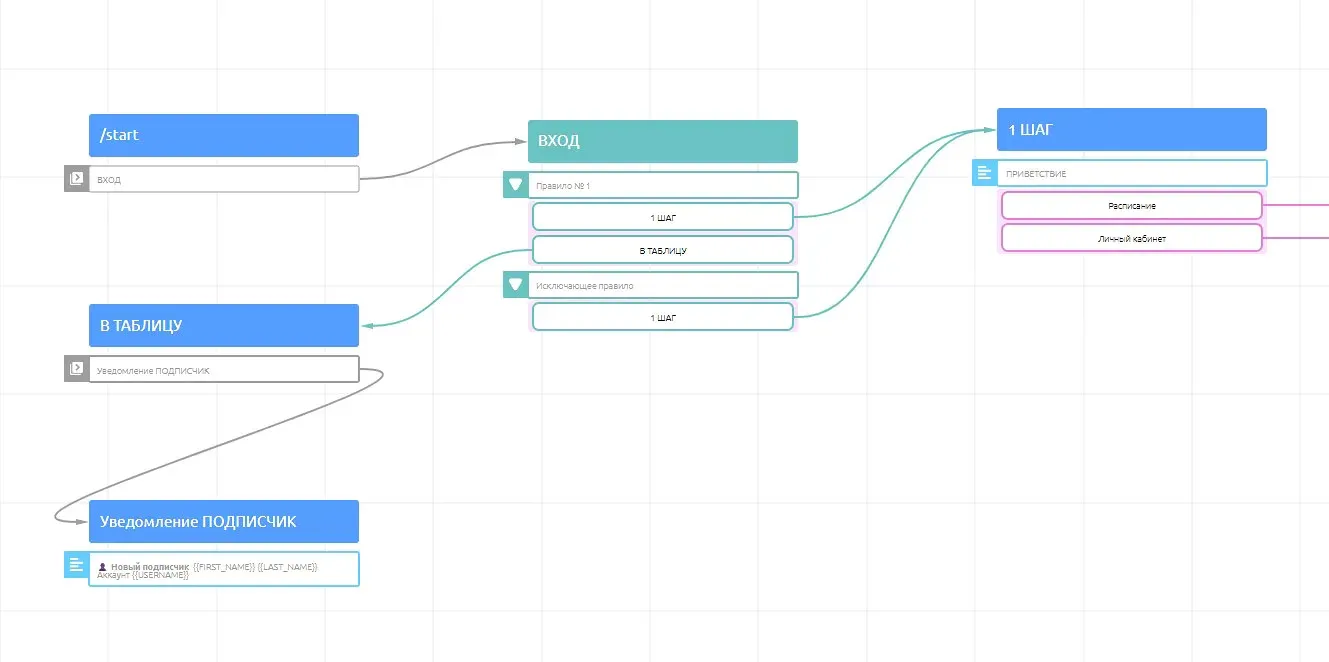
How it works:
When we run /start we send our subscriber directly to the INPUT condition
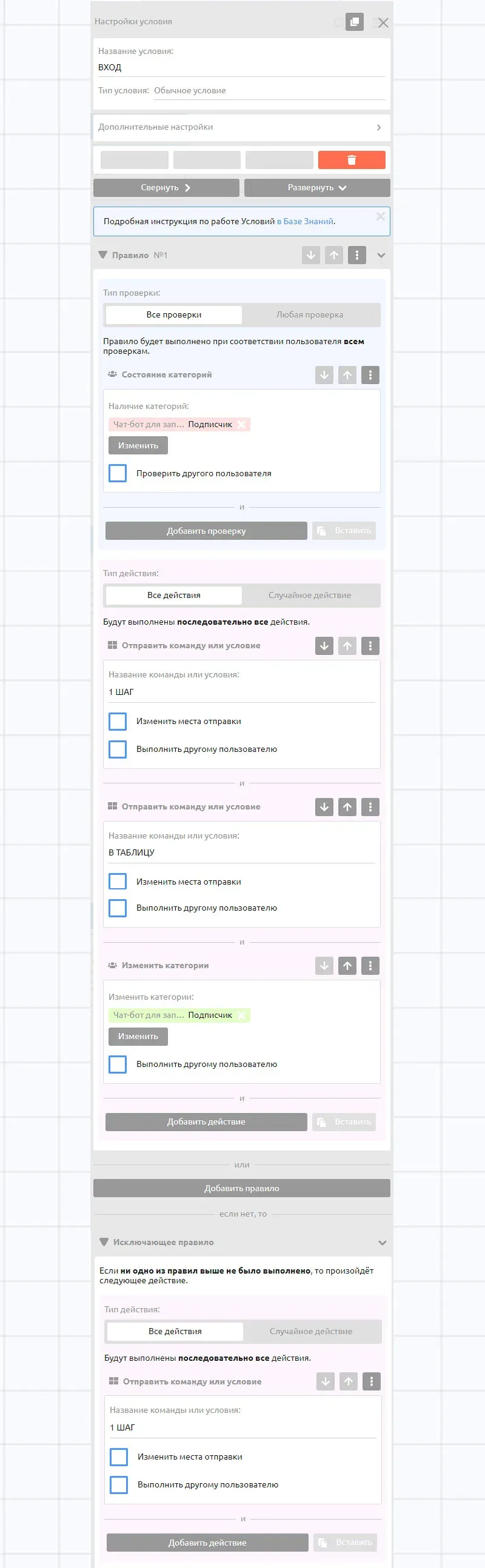
The bot checks if the subscriber has already logged into the bot via category availability
If yes, we immediately send him to the command 1 STEP, which is the first one for the subscriber.
If not, we direct it to the command IN TABLE, where we customize data entry in google. And after that we direct him to the 1 STEP command.
Step 1: Customize the condition
Step 2: Create a command IN TABLE
In the command in actions, select create row.
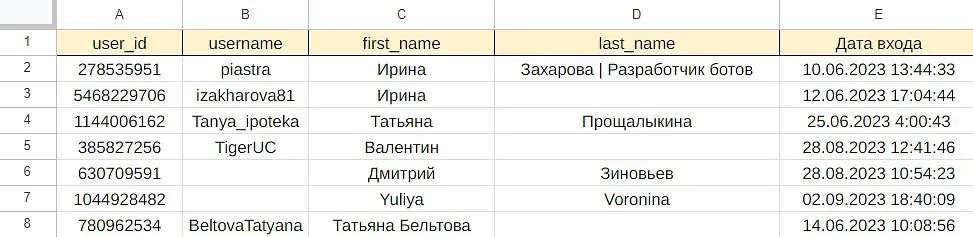
Create a sheet in advance with the names of the columns where you plan to enter their bot's data.
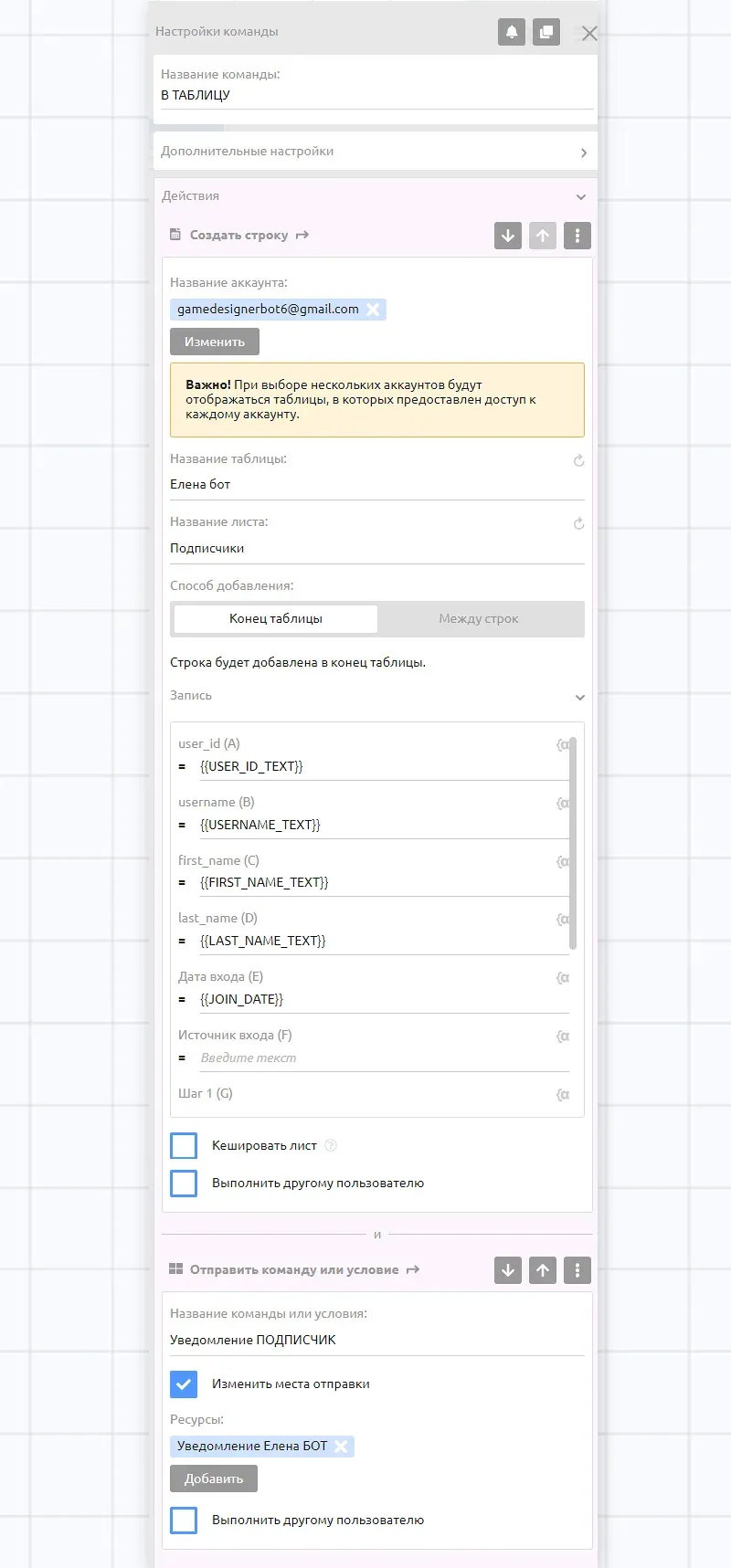
Write the system variables we need in the command.
Step 3: Customize the notification
To customize the notification, let's create a separate command and specify the variables we need. In order for the notification to be sent not to a subscriber in a private message, but to a connected group, let's tick the checkbox - change sending locations and select the group we have connected.
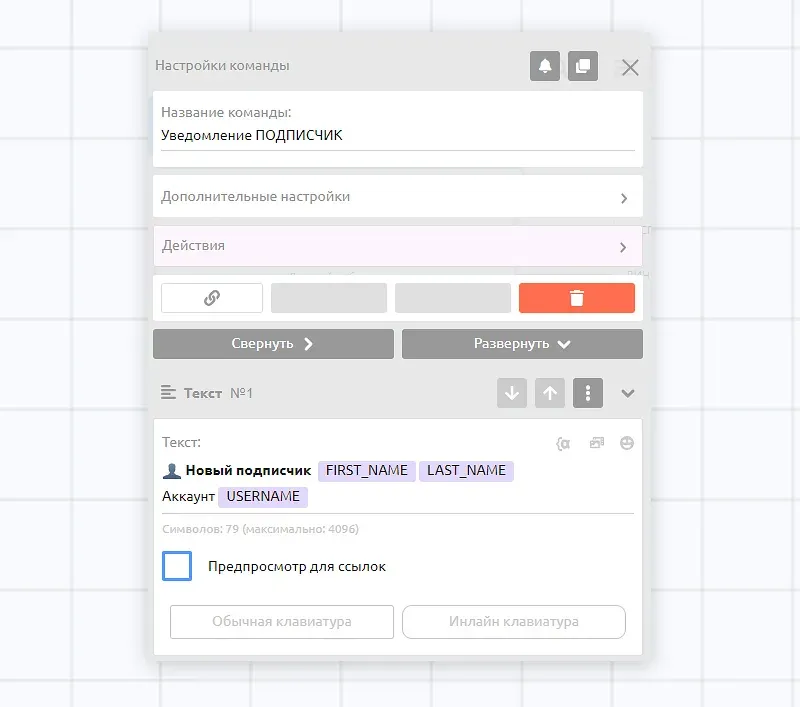
Collect your database of subscribers in a table to customize a variety of interactions, for example, to keep track of who joined which teams, what tests they filled out, how many times they ran a particular team, and so on.
In the next article we will tell you how to find out from what source your bot subscribers come to you.