In the bot, we can customize the buttons to enable and disable a variety of functions. For example, to get information on objects by selecting the desired items.

On the screenshot, the option "Up to 10 minutes walk to the subway" is pressed independently of the others. The other ones, when selected, disable the neighboring ones. When buttons are pressed, the bot changes the value of variables, which are used for filtering.
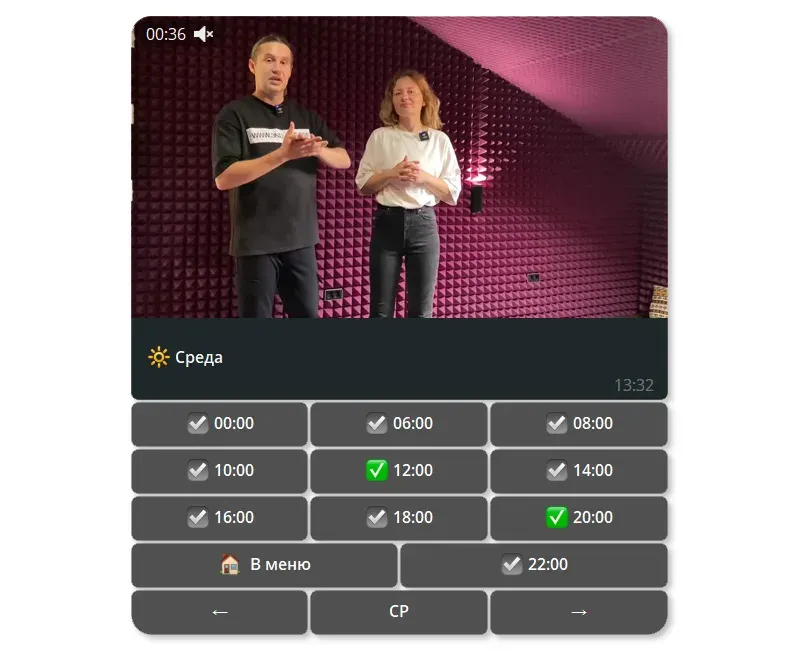
Another example. We have a weekly schedule in front of us, where you can choose a convenient time in Moscow to receive reminders.
To learn how to create such mechanics, let's start with this variant. You can make both buttons active, or you can customize it so that only one option is selected.

We will need to create 1 inline command and 2 condition buttons (1 button for each option).
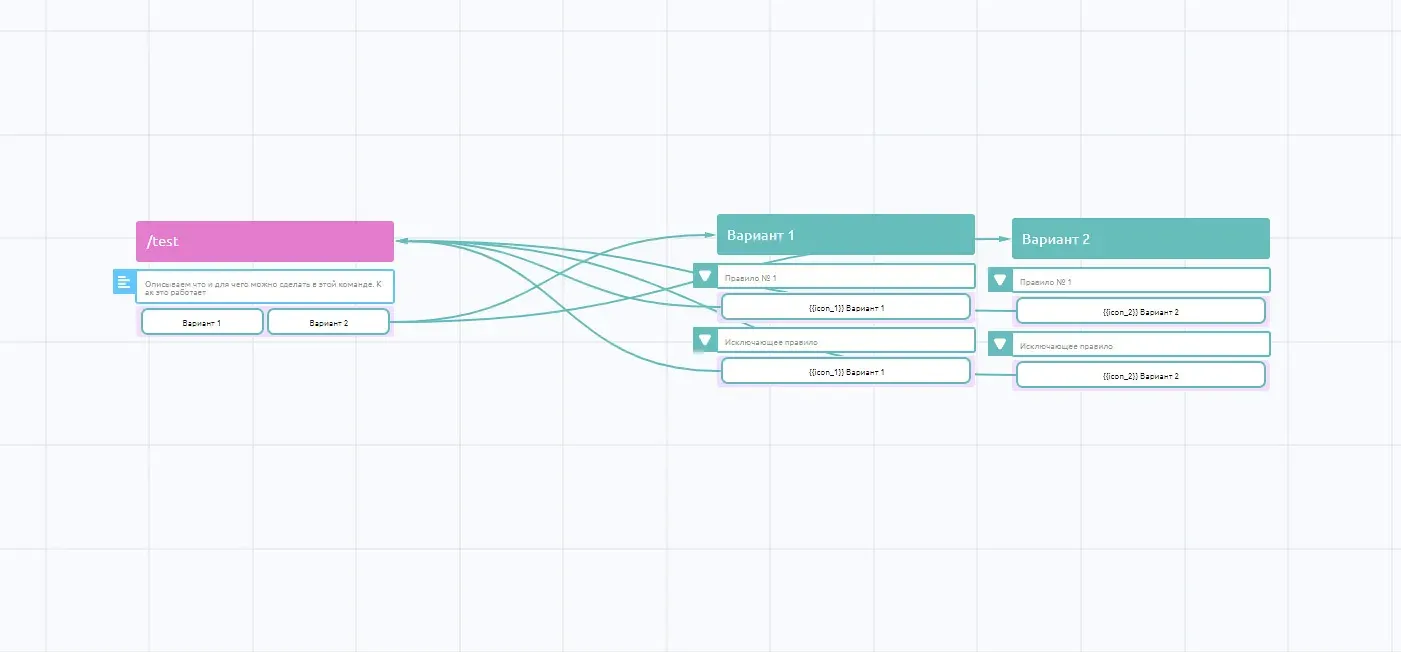
We need one variable for each button. Let's create two {{icon_1}} and {{icon_2}} and assign them the default value ☑️.

Let's create an inline command and write the text inside it, add 2 condition buttons.

Within each condition button, we will describe the order of operations.

В зависимости от текущего значения нашей переменной {{icon_1}} мы меняем его на противоположное и отправляет на исходную инлайн-команду.
For each button, we prescribe the content according to a similar principle. It is more convenient to duplicate buttons rather than create them from scratch.

If we want the checkmark to be checked only on one button and automatically unchecked on all the other buttons, then in the actions we should write changes for all the other variables. For example, in our variant in the action change the value of the second variable to ☑️, don't forget to change also in the exclude rule.

So with the combination of an inline command and the condition button we can display the switching. To launch other functions, we also prescribe them in actions.
We will discuss more complex mechanics of button operation in the next lessons.