Our expert Elena Nikulina explained how to add a game mechanic to a bot.

Step 1 — Add an API token
Requests to the puzzlebot API have the following basic form:
https://api.puzzlebot.top/?token=API_TOKEN&method=METHOD_NAME
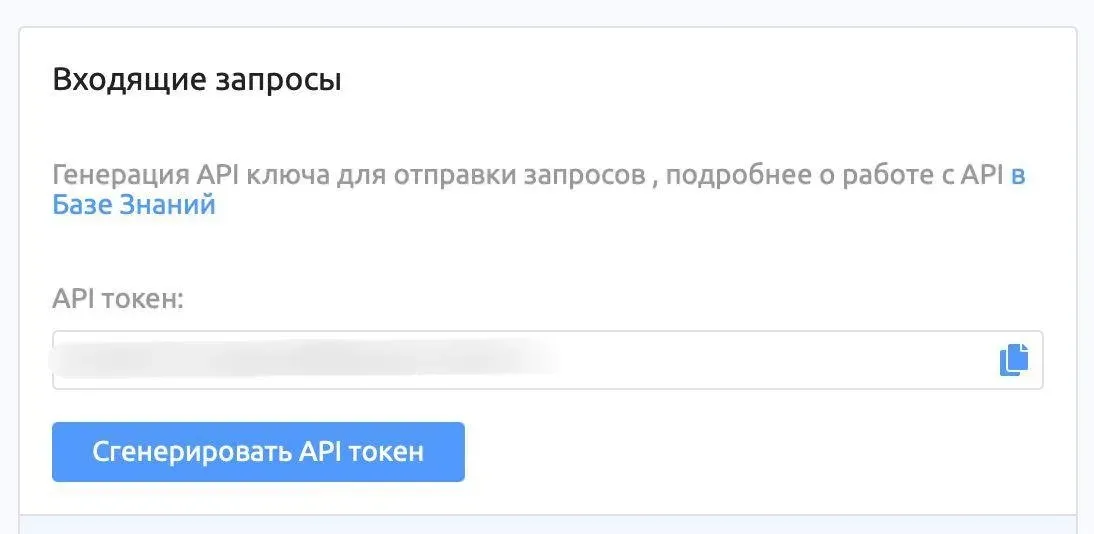
Create an integration in the bot settings:
1. Settings
2. Integrations
3. Incoming requests
4. Generate API token
Step 2 — Add an API method
An API method is the action the bot should perform.

We'll use the sendDice method to send animated emoji with random values. In the puzzlebot API, the method is written as: tg.sendDice.
Telegram has several emoji of this kind; they're all described in the app's documentation and have values of 1-6, 1-5 or 1-64.
Step 3 — Add request parameters
Request parameters are the required and optional data that specify what action will happen.
We'll use the chat_id parameter to identify the user
The chat_id parameter equals the {{USER_ID_TEXT}} variable in puzzlebot.
We'll also use the emoji parameter; its value will be the selected emoji: 🎲 🎯 ⚽️ 🎳 🏀 🎰
Step 4 — Create an integrated variable in puzzlebot

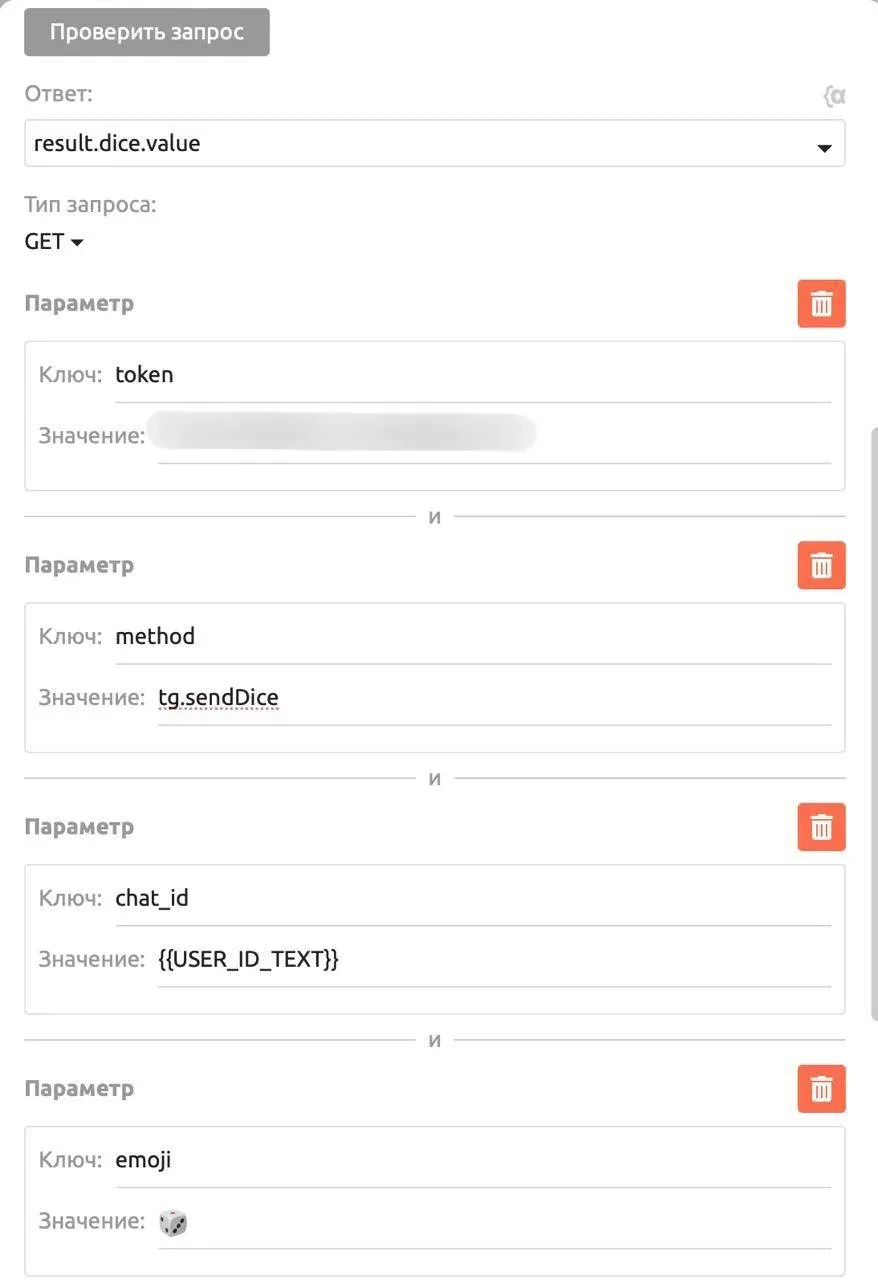
Enter the variable name
1. Value type: Integrated
2. Integration type: HTTP request
3. Value format: number
4. Default value: 0
5. JSON link: https://api.puzzlebot.top
6. Response: select result.dice.value from the list; this is the emoji's random value
7. Request type: GET
8. For convenience, you can enter the parameter values in dedicated fields.
Token: API token
Method: tg.sendDice
chat_id: {{USER_ID_TEXT}}
emoji: 🎲
You could stop here: if you add the emoji variable to any command, the bot will send the emoji along with its value (a number) when the command is triggered.
But to create a game, we'll set up a condition that checks the emoji's value and sends the user to the right branch of the scenario.
Step 5 — Create the game scenario

First, set up the commands the user will be sent to for specific emoji values.

Depending on the emoji you choose, the value will range over 1-6, 1-5 or 1-64. Create as many commands as there are values; for a die, that's 6.
Add a 2-second timer to delay sending the emoji's value and build suspense.
Step 6 — Set up the condition

Rule:
Select the check type: Variable value. Find our emoji variable and enter the value 1.

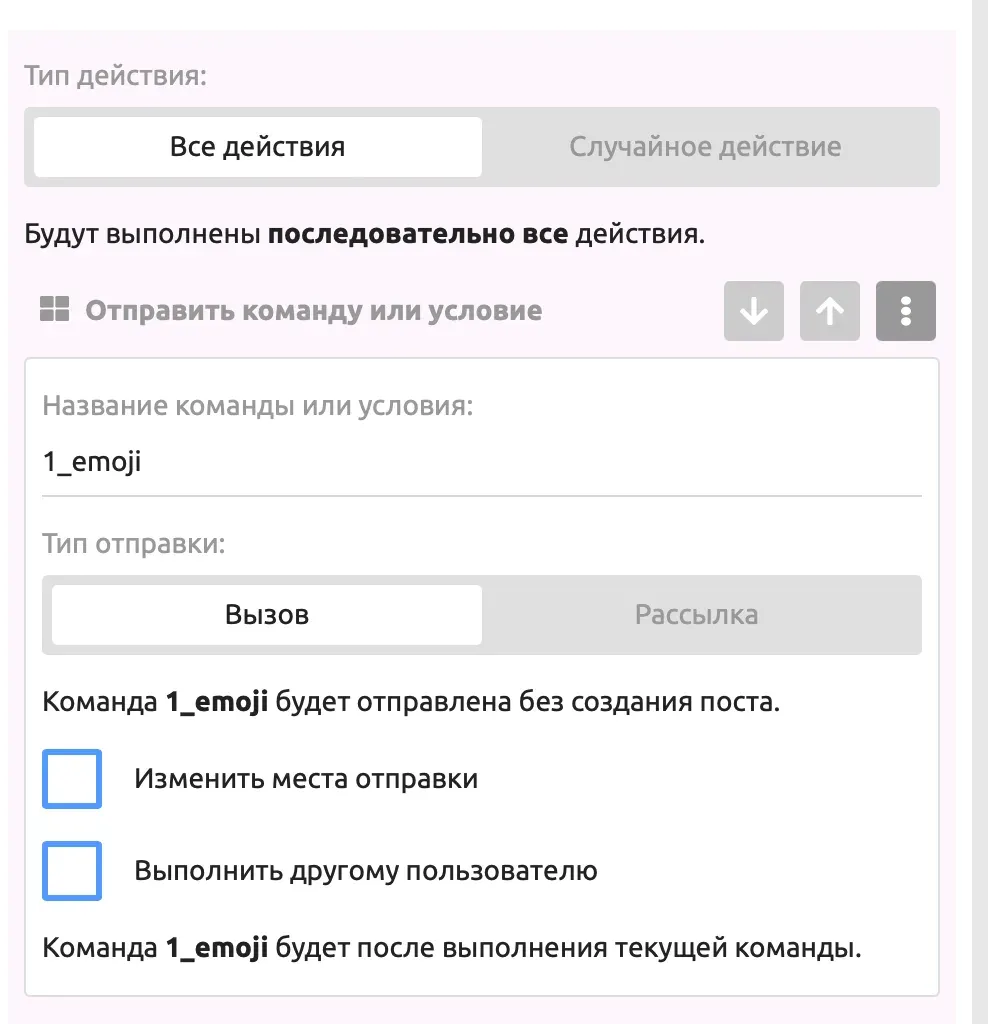
Action:
Select the action type: Send command or condition. Select the command you need; in our case, it's 1_emoji
Set up conditions for the other emoji values the same way

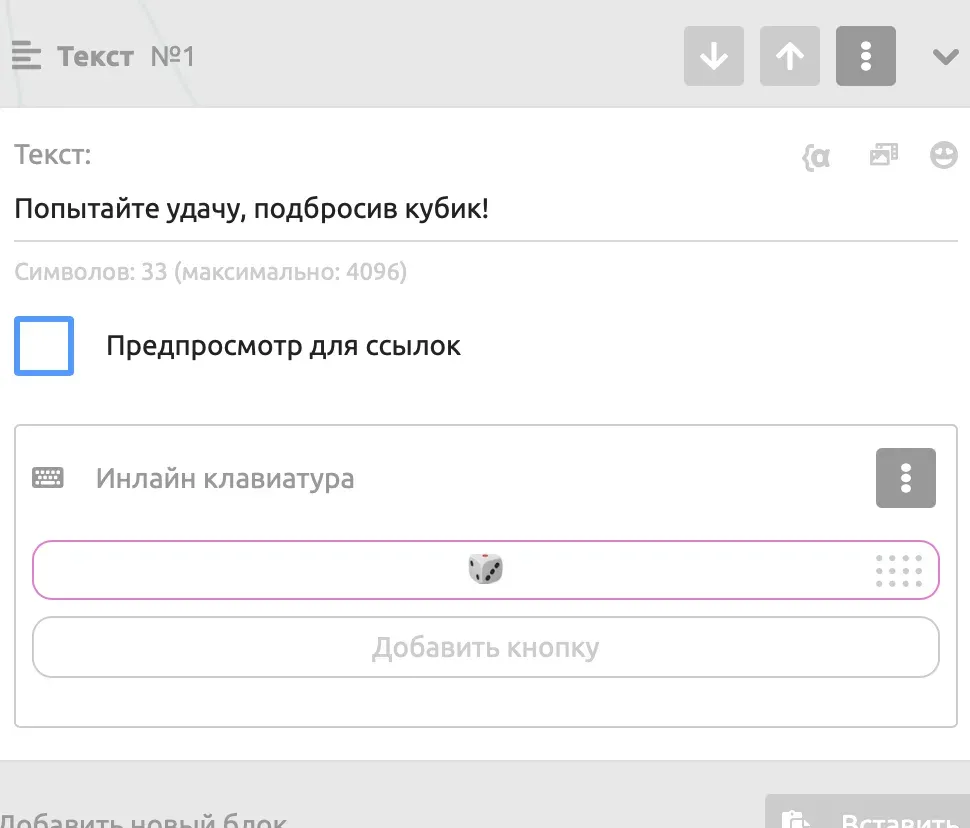
7. Testing
Add a starting command with a button that leads to the condition and triggers our request.
Great, we've learned how to add a game to a bot.
Want to ask our expert a question? Leave it in the comments under the latest post in our channel, and we'll break down the most interesting ones.